Defining Tags
Before you begin
- You are assigned to a user group that at least has the permission Change production data.
About this task
A tag is a simple, reusable label used to match things together — most commonly a label layout to a printer, so a coding scenario can pick the right layout for a given printer without hard-coding names. Beyond layouts and printers, a resource file or an import task can also carry a tag. A tag is only defined here; it’s assigned to a device, layout, resource, or import task on that item’s own configuration page.
Procedure
- In the side bar, select System Data and click Tags.
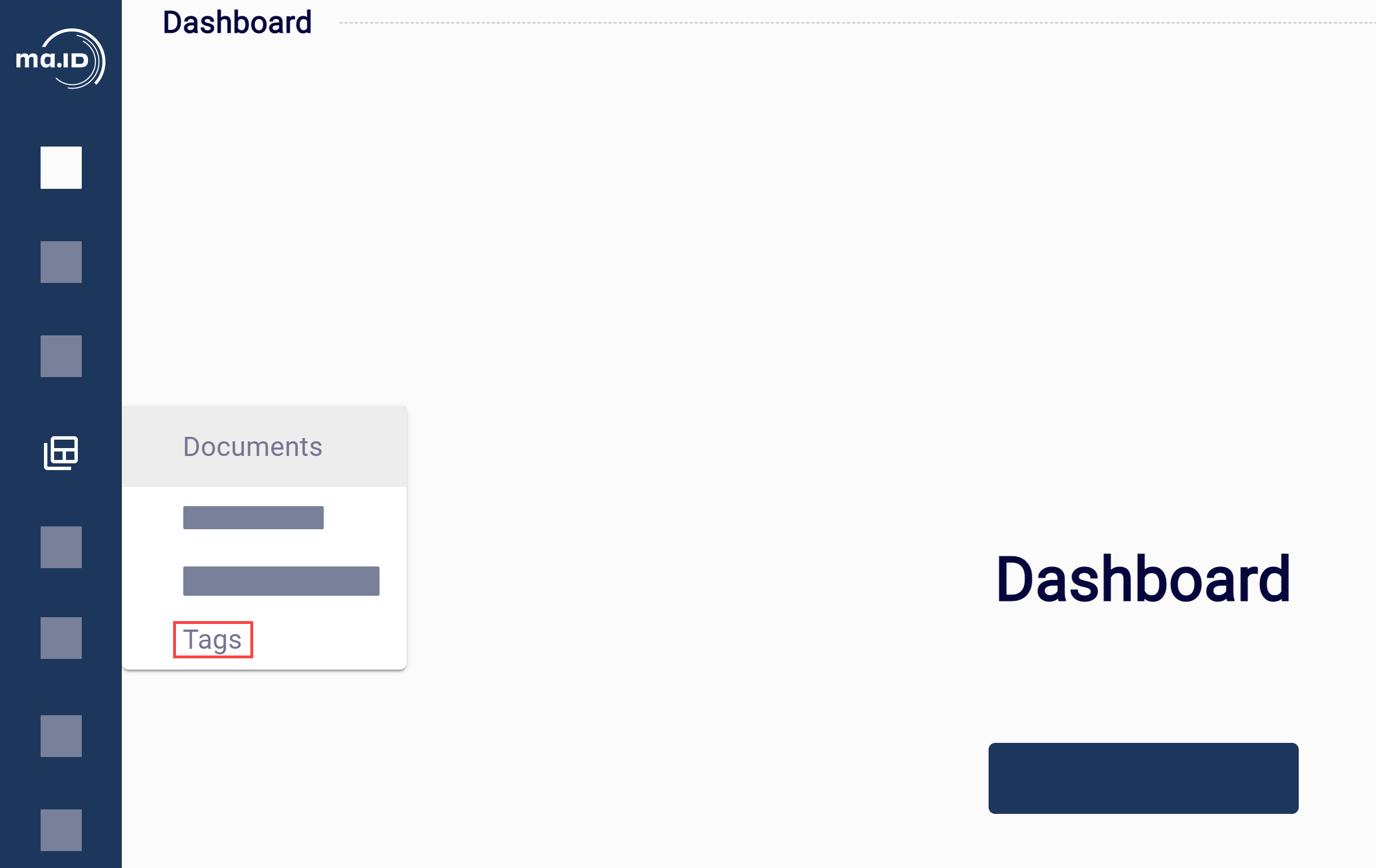 The view Tags opens.
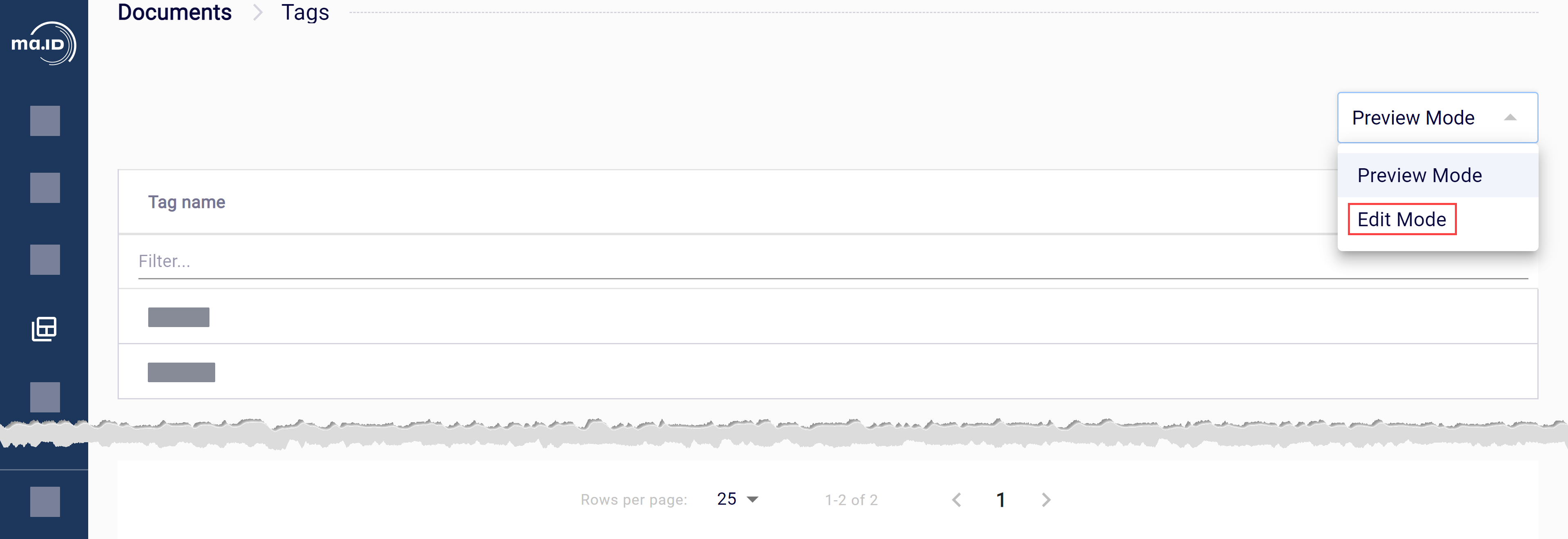
2. Open the drop-down menu and click Edit Mode.
The view Tags opens.
2. Open the drop-down menu and click Edit Mode.
 3. Click + Add row to insert an empty input field into the table.
4. Enter the tag name into the field. The name must be unique.
5. Click Save.
6. To add more tags, repeat steps 3 to 5.
7. Open the drop-down menu and click Preview Mode to deactivate the edit mode.
3. Click + Add row to insert an empty input field into the table.
4. Enter the tag name into the field. The name must be unique.
5. Click Save.
6. To add more tags, repeat steps 3 to 5.
7. Open the drop-down menu and click Preview Mode to deactivate the edit mode.
Results
You have defined a tag. It’s now available to assign on a device, layout, resource, or import task.
Limitations
- A tag name must be unique.
- A tag that’s currently assigned to any layout, device, resource file, or import task can’t be deleted — remove it from all of them first.
What to do next
- Import a label layout.
- Set up a hardware device.