Updating Master Data
Before you begin
- You are assigned to a user group that has the Change production data permission.
About this task
Besides importing data automatically, you can also add, edit, or remove master data records directly in Master Data — useful for one-off changes or data you don’t import from an external source.
Procedure
In the side bar, select Master Data and open Products, Production Orders, Various, Logistic units, or Print jobs.
To change an existing record, click its Edit (pencil) icon. This opens the record in an edit form; change the fields you need and save.
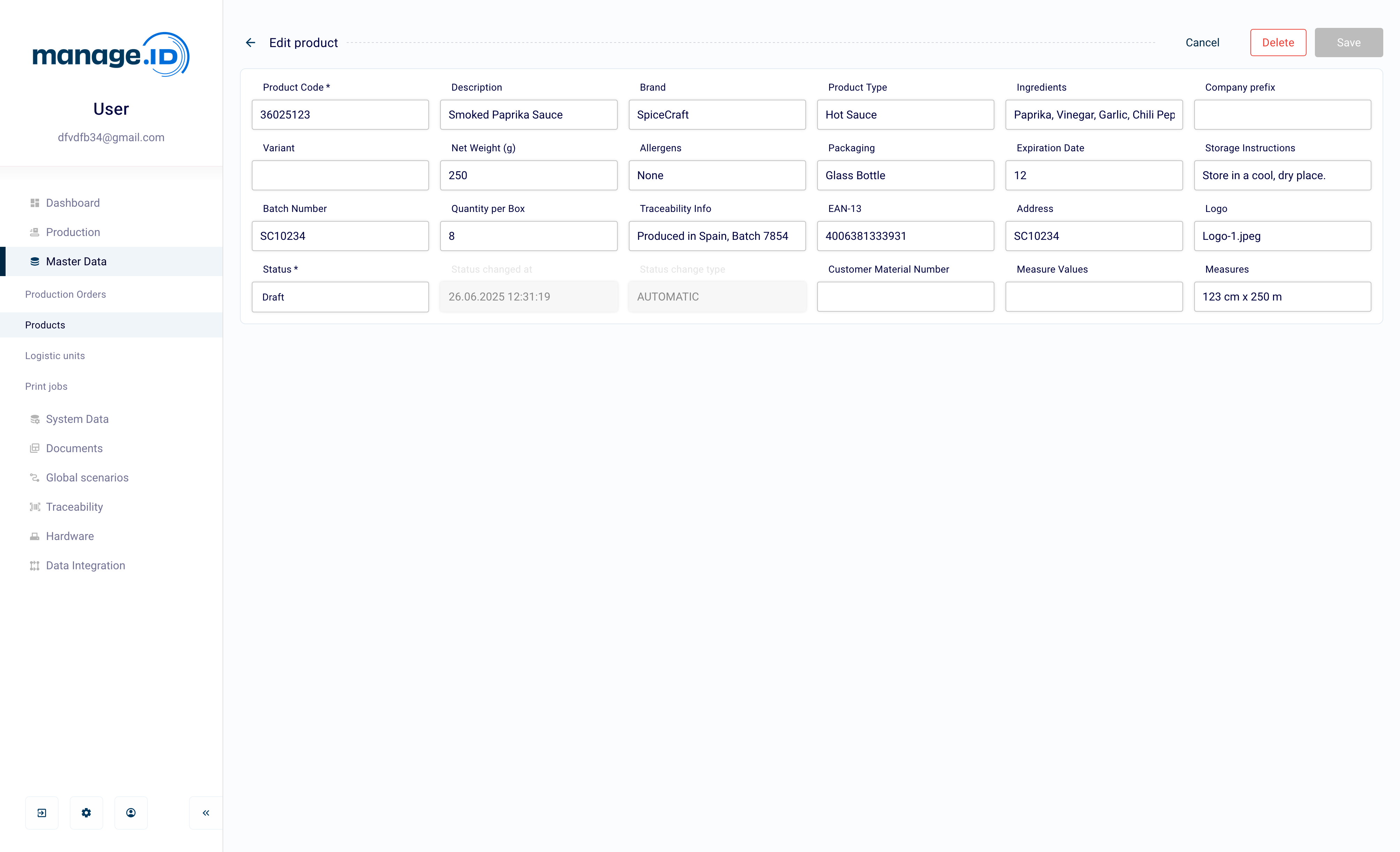
To add a new record, click Add new. This opens the same form, empty, for you to fill in and save.
To create a new record starting from an existing one, click its Duplicate icon. This opens the same form pre-filled with that row’s data — including its match-key fields (for example product code and variant) — so you need to change whatever should be different, including the key fields, before saving; saving without changing them fails like any other duplicate-key conflict.
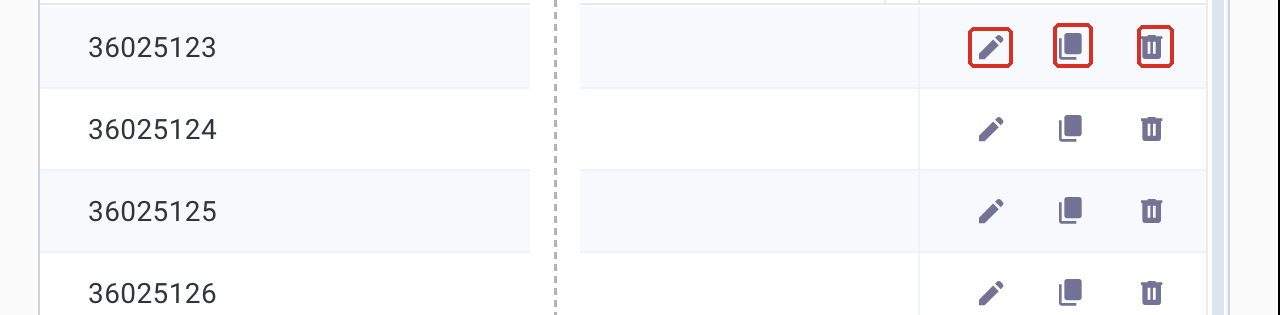
To remove a record, click its Delete (trash) icon and confirm. If the Audit Trail feature is enabled, you’ll also need to supply a reason.
Each of these takes effect immediately — there’s no separate edit mode to switch into first, and Duplicate needs the same permission as Edit and Delete.
To add, rename, or delete a column itself (rather than a record’s data), see Custom Columns — that requires the separate Manage data columns permission.
Results
You have manually updated master data. You see the current state of the data in Master Data.
What to do next
- Import a label layout.
- Create a coding scenario.
- Define tags.