Custom Columns
Before you begin
- You are assigned to a user group that has the Manage data columns permission — this is required both to add a new column and to rename one.
What this is
Beyond the fixed fields documented on each data type’s page, every master data table — Product, Production Order, Various Data, Logistic Unit, and Print Job — can be extended with custom columns to track whatever else your company needs. Each table has its own fixed capacity and per-value character limit; see that data type’s Custom / additional columns section for the specifics.
Adding a column
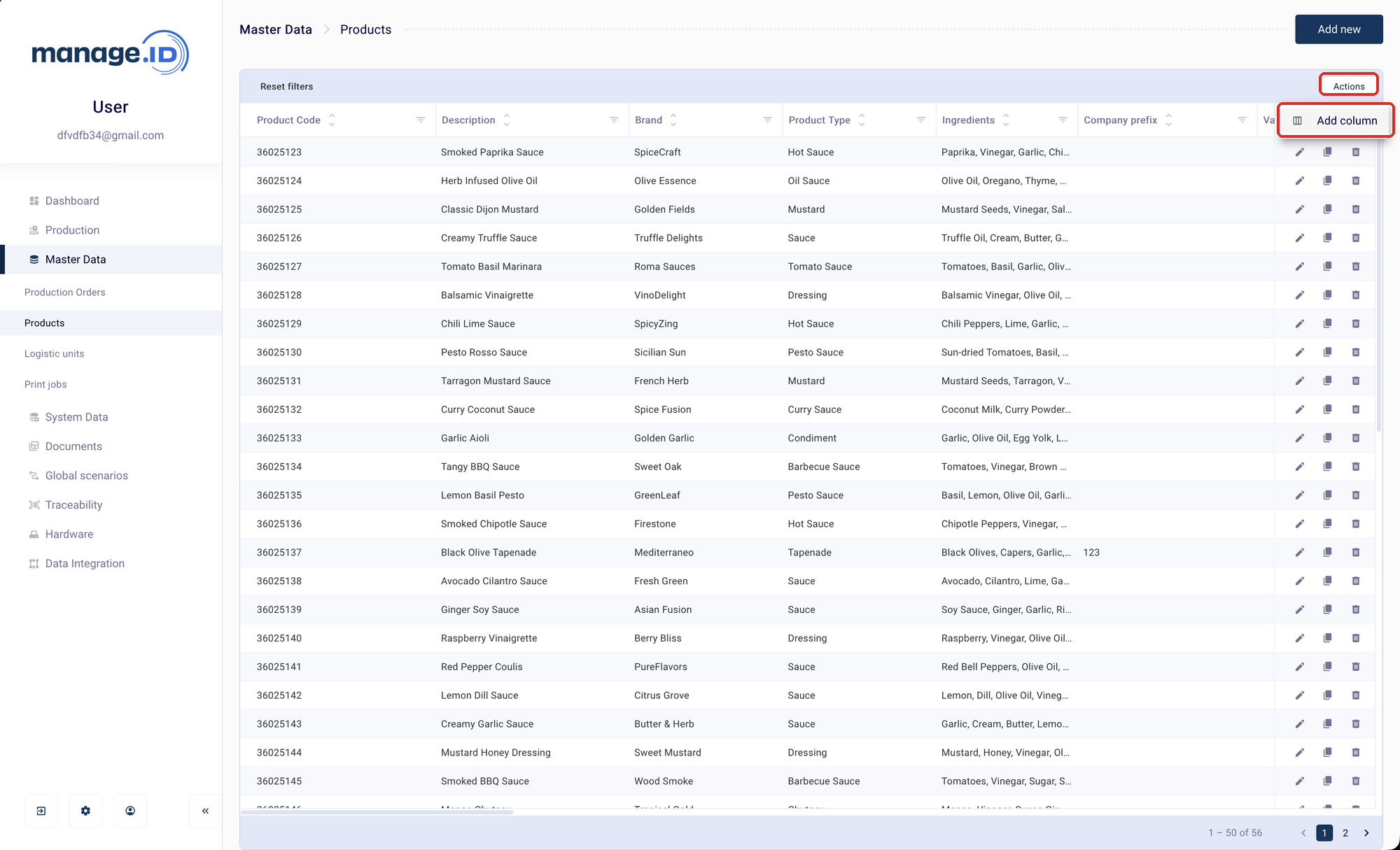
In Master Data, open the table you want to extend (Products, Production Orders, Various, Logistic units, or Print jobs), open the Actions menu, and select Add column.
In the Create a new column dialog, enter a Column name — the only field. If the Audit Trail feature is enabled, you’ll also need to supply a Reason. There’s no option here to set a data type, a character limit, or which table it belongs to — those are fixed by the table you opened the dialog from.
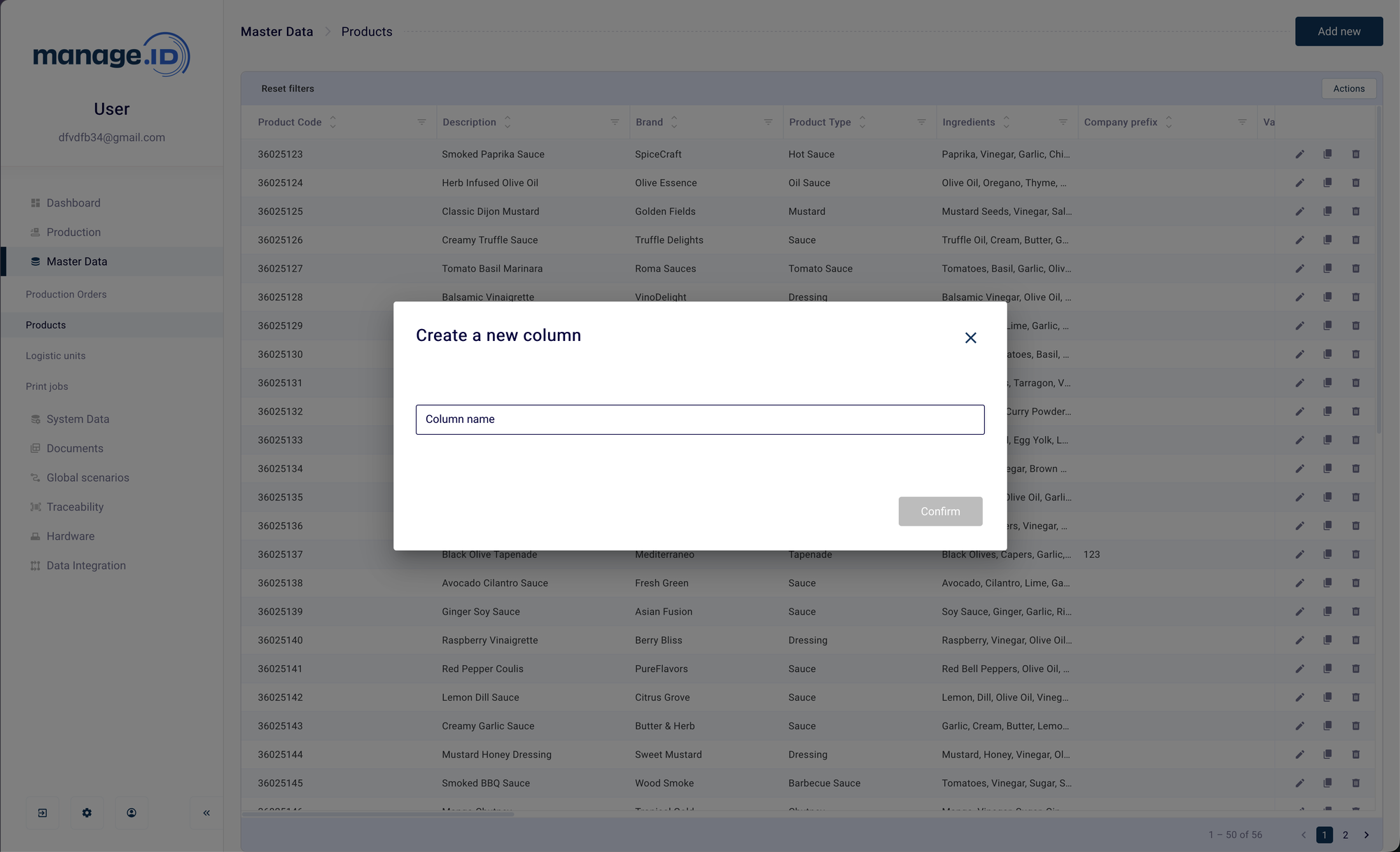
Confirm. The column is created immediately as a visible, editable, optional field — this dialog has no way to make a new column mandatory or a “main” field.
A name already in use on that table (matched by its label) is rejected with a “Column already exists” error.
How it relates to importing
Adding a column here and letting an import task map an unmapped source column to a new custom field use the same underlying mechanism — both claim the next free slot out of that table’s fixed capacity. A column added one way is immediately available to the other: add it here and it shows up as a mapping target during import setup, or map a new custom column during import and it shows up here, in the table, afterwards.