Send Print Job(s)
This tab provides steps that control the printing process.
Most steps on this tab additionally expose two optional common parameters: Quantity (overrides the number of labels to print) and Print_ACK (request a print acknowledgement). Only the step-specific parameters are listed below.
Send print job to printer
This action step sends a print job to a specific printer assigned to the production line.
| Parameter | Type | Description |
|---|---|---|
| Printer | Mandatory | The printer that should execute the print job. |
| Add load logo | Optional | If enabled, a command to load logos is included in the print job. |
Send print job to all
This action step sends a print job simultaneously to all printers assigned to the production line.
| Parameter | Type | Description |
|---|---|---|
| Add load logo | Optional | If enabled, a command to load logos is included in the print job sent to all printers. |
Generate printer data set(s)
This action step creates printer data sets in LDF format. Use this step when the printing process requires a pre-generated data file instead of a direct print command.
| Parameter | Type | Description |
|---|---|---|
| LDF table | Mandatory | The table that provides the LDF data. |
| LDF column | Mandatory | The column in the LDF table that is used. |
| LDF Collection | Optional | The LDF collection to generate. |
| ANSI->Roman8 | Optional | If enabled, converts ANSI characters to the Roman8 character set. |
| ANSI->PC8 | Optional | If enabled, converts ANSI characters to the PC8 character set. |
| LMF file name | Optional | The name of the LMF file that is created. |
Generate preview
This action step generates a preview of the print data that would be sent to the printer, without executing an actual print job. The step processes the print data exactly as a print step would, so the preview shows the label with its resolved variables and can be used to validate the label content before the print job is actually sent.
Use this step before the actual printing execution to check the data on the label, and during the development and testing of coding scenarios to verify the print data without producing labels.
Because no print job is executed, this step does not increase counters in the master data.
| Parameter | Type | Description |
|---|---|---|
| timeOut Exception | Optional | If enabled, the scenario raises an error when the preview is not confirmed within the timeout. |
| TimeOut Time | Optional | The time to wait for the preview before the timeout applies. |
Examples
Example 1: Previewing the Print Data before Printing
When a production is started on the line, the On production started step triggers the scenario. The Identify layout step reads the name of the label layout from the master data, and the Generate preview step generates a preview of the print data so the label content can be checked. The Send print job to printer step then sends the print job to the printer.

Example 2: Testing the Print Data without Printing
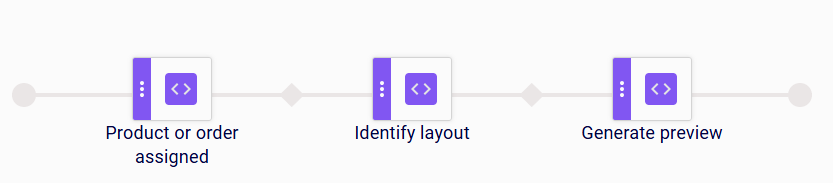
When a product or production order is assigned to the production line, the Product or order assigned step triggers the scenario. The Identify layout step reads the name of the label layout from the master data, and the Generate preview step generates a preview of the print data.
Since the scenario contains no print step, no print job is sent and no counter in the master data is increased. This makes the scenario suitable for testing the print data of a layout during the development of a coding scenario.
Limitations
- The printer driver must support preview jobs. If the driver does not support them, no preview can be generated.
- The step only generates a preview; it does not send a print job. To print the data, add a print step such as Send print job to printer or Send print job to all.
Modify print copies quantity
This step pauses the scenario and prompts the user to confirm or change the number of label copies to print before the print job is sent. It applies to the printers targeted by the scenario (a specific selection, or all printers on the line). Each printer has its own print quantity, and a separate device property controls whether that quantity can be modified by the user; only printers with this property enabled are included in the prompt. The quantity confirmed or changed by the user is then used when the print job is sent. All copies share the same set of variables, for example the same counter value. To generate unique print jobs with their own calculated variables instead, use Modify print job quantity.
| Parameter | Type | Description |
|---|---|---|
| timeOut Exception | Optional | If enabled, the scenario raises an error when the user does not respond within the timeout. |
| TimeOut Time | Optional | The time to wait for the user response before the timeout applies. |
Examples
Example 1: Confirming the Print Quantity when Production Starts
When a production is started on the line, the On production started step triggers the scenario. The Generate preview step generates a preview of the print data, and the Modify print copies quantity step then prompts the user to confirm or change the number of copies before the Send print job to printer step sends the print job to the printer.

Example 2: Confirming the Print Quantity when a Product or Order Is Assigned
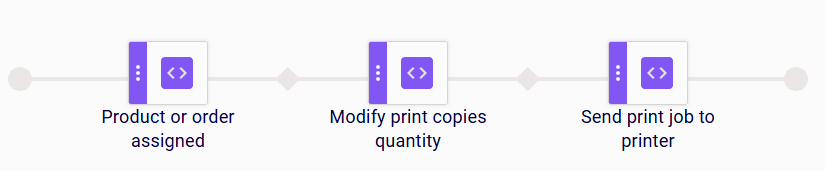
When a product or production order is assigned to the production line, the Product or order assigned step triggers the scenario. The Modify print copies quantity step then prompts the user to confirm or change the number of copies before the Send print job to printer step sends the print job to the printer.
Limitations
- Only printers with the print quantity modification property enabled are included in the prompt; other targeted printers keep their existing quantity unchanged. If none of the targeted printers have this property enabled, no prompt is shown and the step has no effect.
- If the user cancels the prompt, the step is cancelled and the scenario does not continue.
Modify print job quantity
This action step changes the quantity of an existing print job, using the value set through the common Quantity parameter. Unlike Modify print copies quantity, which prints multiple identical copies sharing the same set of variables, this step generates the configured quantity as separate print jobs, each with its own set of calculated variables, for example a different counter value per print job.
This step has no step-specific parameters.
Examples
Example 1: Generating Unique Print Jobs when Production Starts
When a production is started on the line, the On production started step triggers the scenario. The Generate preview step generates a preview of the print data, and the Modify print job quantity step then generates the configured quantity as separate print jobs, each with its own calculated variables. The Send print job to printer step then sends them to the printer.

Example 2: Generating Unique Print Jobs when a Product or Order Is Assigned
When a product or production order is assigned to the production line, the Product or order assigned step triggers the scenario. The Modify print job quantity step then generates the configured quantity as separate print jobs, each with its own calculated variables, and the Send print job to printer step then sends them to the printer.

Limitations
- To print multiple identical copies of the same print job instead, use Modify print copies quantity.
Resume production
This action step resumes a paused or interrupted production by re-sending the print job to the printer. The printer is reloaded with exactly the same print job data as before the interruption, so production continues without loss or change of print data.
When the step is executed, a popup prompts the user to select the printer that should be reloaded with the print data. Optionally, the user can check the modifiable variables before the print job is re-sent.
| Parameter | Type | Description |
|---|---|---|
| Quantity | Optional | Overrides the number of labels to print for the re-sent print job. |
| Print_ACK | Optional | If enabled, a print acknowledgement is requested from the printer. |
Examples
Example 1: Resuming Production after a Product Reload
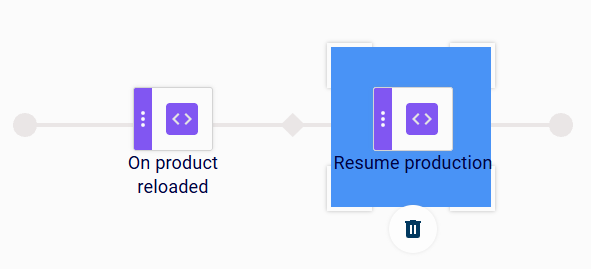
When the active product on the production line is reloaded, the On product reloaded step triggers the scenario. The Resume production step then prompts the user to select the printer that should be reloaded and re-sends the print job to it.
The printer continues production with exactly the same print data as before the reload.
Example 2: Resuming Production on an I/O Signal
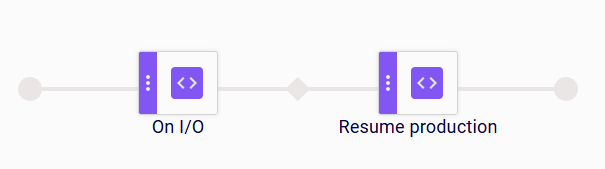
When an I/O device emits a signal, the On I/O step receives and validates the signal. The Resume production step then prompts the user to select the printer that should be reloaded and re-sends the print job to it.
The printer continues production with exactly the same print data as before the interruption.
Limitations
- The step can only re-send a print job that was previously sent; it does not generate new print data.
Send command to device
This action step sends a command to a device when a configured condition is met.
| Parameter | Type | Description |
|---|---|---|
| Device | Mandatory | The device the command is sent to. |
| Condition table | Mandatory | The table that provides the value evaluated by the condition. |
| Condition field | Mandatory | The field evaluated by the condition. |
| Condition regexp | Optional | A regular expression the field value must match for the command to be sent. |
| Command template | Mandatory | The template of the command to send. |
| Stop on error | Mandatory | If enabled, the scenario stops when the command cannot be sent. |
Send simple template to device worker
This action step sends a simple command template to a device.
| Parameter | Type | Description |
|---|---|---|
| Device | Mandatory | The device the command is sent to. |
| Command template | Mandatory | The template of the command to send. |
| Stop on error | Mandatory | If enabled, the scenario stops when the command cannot be sent. |
Reprint printer log
This action step reprints a previously printed label from the printer log, optionally prompting the user to choose the printer and layout.
| Parameter | Type | Description |
|---|---|---|
| Printer popup | Optional | If enabled, the user is prompted to choose the printer for the reprint. |
| Printer | Optional | The printer used for the reprint when no popup is shown. |
| Layout popup | Optional | If enabled, the user is prompted to choose the layout for the reprint. |
| Layout | Optional | The layout used for the reprint when no popup is shown. |