Other
This tab provides utility steps for miscellaneous functions in a coding scenario.
Sync files on all printers
This action step synchronizes all resource files (layouts, fonts, logos) to all hardware devices assigned to the production line. Use this step after a resource update to ensure all printers have the latest files before a print job is sent.
This step has no parameters.
Pause
This action step delays the execution of the next step by a number of seconds. Use it to introduce a deliberate wait between actions, for example to give hardware time to complete an operation.
| Parameter | Type | Description |
|---|---|---|
| Sleep (sec) | Optional | The number of seconds the scenario waits before executing the next step. Defaults to 2 seconds. |
Fragment data by position
This action step extracts a fragment from the input data, identified by a start position and a length.
| Parameter | Type | Description |
|---|---|---|
| Start Position | Mandatory | The zero-based position in the input where the fragment begins. |
| Length | Mandatory | The number of characters to extract. |
Extract data by position
This action step extracts a substring from the input data by position and stores it under a named key for later steps.
| Parameter | Type | Description |
|---|---|---|
| Start Position | Mandatory | The position in the input where the extraction begins. |
| Length | Mandatory | The number of characters to extract. |
| Key | Mandatory | The name under which the extracted value is stored. |
Check scenario variable
This action step validates a scenario variable against an expected value. If the value does not match, the scenario stops and an error is reported.
| Parameter | Type | Description |
|---|---|---|
| Key | Mandatory | The scenario variable to check. |
| Expected Value | Mandatory | The value the variable must have. |
Checking scanned data against printed data
This action step compares the data scanned after printing against the data that was printed, to verify the label was produced correctly.
| Parameter | Type | Description |
|---|---|---|
| Layout fields | Mandatory | The layout fields compared against the scanned data. |
Filter products by line
This action step filters the available products to those valid for the current production line.
| Parameter | Type | Description |
|---|---|---|
| Line info source | Mandatory | The source of the line information used to filter products. |
Set status to products/orders
This action step sets a status value on the current products and production orders in a single step.
Available only when the Status feature is enabled.
| Parameter | Type | Description |
|---|---|---|
| Status for products | Mandatory | The status to set on the products. |
| Status for production orders | Mandatory | The status to set on the production orders. |
Examples
Example 1: Setting a Status when Production Starts
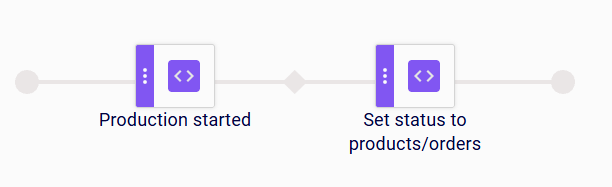
When a production is started on the line, the On production started step triggers the scenario. The Set status to products/orders step then sets the configured statuses on the current products and production orders.
Example 2: Setting a Status when a Production Order Is Reloaded
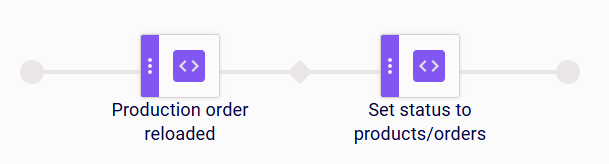
When a production order is reloaded on the line, the On production order reloaded step triggers the scenario. The Set status to products/orders step then sets the configured statuses on the current products and production orders.
Limitations
- The status for products or production orders is only set if they are available in the coding scenario context (production data); otherwise it is skipped and the step does not fail.
Set status to products
This action step sets a status value on the current products.
Available only when the Status feature is enabled.
| Parameter | Type | Description |
|---|---|---|
| Status for product | Mandatory | The status to set on the products. |
Examples
Example 1: Setting a Status when the Product Is Reloaded
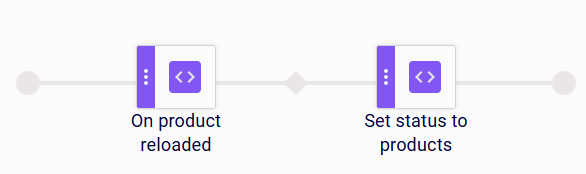
When the active product on the production line is reloaded, the On product reloaded step triggers the scenario. The Set status to products step then sets the configured status on the current products.
Example 2: Setting a Status when Production Stops
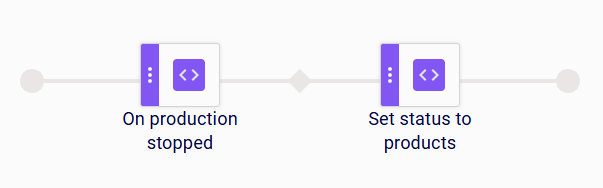
When a production is stopped on the line, the On production stopped step triggers the scenario. The Set status to products step then sets the configured status on the current products.
Limitations
- The status is only set if products are available in the coding scenario context (production data); otherwise it is skipped and the step does not fail.
Set status to orders
This action step sets the selected status on the current production orders. The production orders are identified by the current line context or by a preceding step in the sequence. The new status is persisted, so subsequent steps and other scenarios work with the updated status. Use this step to track the state of production orders along the production process.
Available only when the Status feature is enabled.
| Parameter | Type | Description |
|---|---|---|
| Status for production orders | Mandatory | The status to set on the production orders. |
Examples
Example 1: Updating the Status when a Production Order Is Reloaded
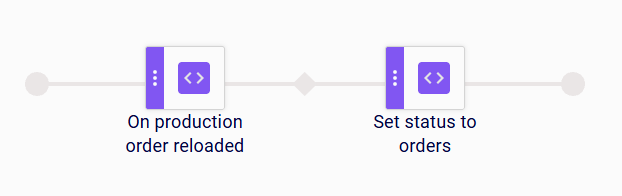
When a production order is reloaded on the line, the On production order reloaded step triggers the scenario. The Set status to orders step then sets the selected status on the current production order.
Example 2: Marking a Production Order after an Exception
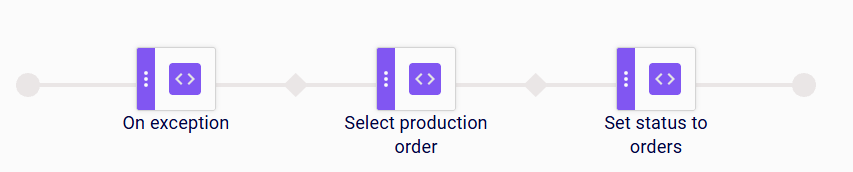
When an exception occurs during scenario execution, the On exception step triggers the scenario. The Select production order step identifies the affected production order from the master data. The Set status to orders step then sets the selected status on that production order, for example to mark it for review after the error.
Limitations
- The step requires a production order identified by the current line context or a preceding step.
Set status to logistic units
This action step sets the selected status on the current logistic units. The logistic units are identified or created by a preceding step in the sequence. The new status is persisted, so subsequent steps and other scenarios work with the updated status, for example the Check logistic unit status step. Use this step to track the state of logistic units along the production process.
Available only when the Logistic Units feature is enabled.
| Parameter | Type | Description |
|---|---|---|
| Status for logistic units | Mandatory | The status to set on the logistic units. |
Examples
Example 1: Updating the Status of a Scanned Logistic Unit
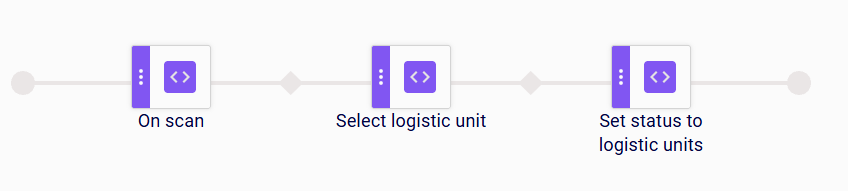
A scanner on the production line reads a barcode from an incoming item. The On scan step receives the scanned value, and the Select logistic unit step selects the matching logistic unit. The Set status to logistic units step then sets the selected status on that logistic unit.
Example 2: Setting an Initial Status on a Newly Created Logistic Unit
When a product or production order is assigned to the production line, the Product or order assigned step starts the sequence. The Send print job to printer step sends the label to the printer, and the Create logistic unit from printer log step creates a new logistic unit from the resulting printer log entry. The Set status to logistic units step then sets the selected status on the newly created logistic unit, so it starts its lifecycle with a defined status.

Limitations
- The step requires logistic units identified or created by a preceding step; place it after the step that selects or creates the logistic units.
Check logistic unit status
This action step checks the status of the current logistic unit against a set of expected statuses. The logistic unit is identified by a preceding step. If the current status matches one of the expected statuses, the scenario continues with the next step. If it does not, the scenario ends at this step. Use it to make sure that only logistic units in an expected state are processed further.
Available only when the Logistic Units feature is enabled.
| Parameter | Type | Description |
|---|---|---|
| Expected statuses | Mandatory | The statuses the logistic unit is allowed to have. At least one status must be defined. |
Examples
Example 1: Starting Production Only for an Expected Status
A scanner on the production line reads a barcode from an incoming item. The On scan step receives the scanned value, and the Select logistic unit by identifier step selects the matching logistic unit. The Check logistic unit status step then verifies that the logistic unit has one of the expected statuses. Only if the check succeeds does the Start Production step start the production on the line.

Example 2: Appending Data Only for an Expected Status
When a scan is received from any scanner assigned to the line, the On any scan step receives the scanned value, and the Select logistic unit by identifier step selects the matching logistic unit. The Check logistic unit status step then verifies the logistic unit’s status. Only if the status matches one of the expected statuses does the Append data to Logistic Unit step append data to the logistic unit.

Limitations
- The step requires a logistic unit identified by a preceding step (e.g. a scan); place it after the step that selects the logistic unit.
Clear print buffer
This action step clears the pending print data for a printer. Some printers support a custom clear command, which can be configured in the device properties.
| Parameter | Type | Description |
|---|---|---|
| Printer | Mandatory | The printer whose print buffer is cleared. |
Examples
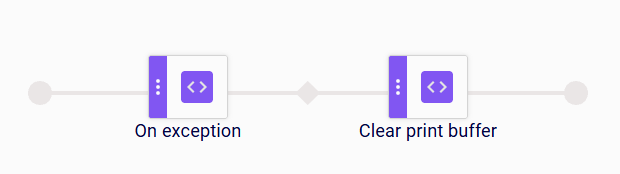
Example 1: Clearing the Print Buffer after an Exception
When an exception occurs during scenario execution, the On exception step triggers the scenario. The Clear print buffer step then clears the pending print data on the selected printer, so no outdated labels are printed after the error.
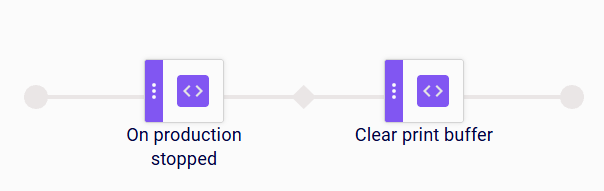
Example 2: Clearing the Print Buffer when Production Stops
When a production is stopped on the line, the On production stopped step triggers the scenario. The Clear print buffer step then clears the pending print data on the selected printer, so leftover print jobs are not printed when the next production starts.
Limitations
- Whether the print buffer is cleared with a custom clear command depends on the printer; the command must be set up in the device properties.
Custom message
This action step sends a custom notification message to configured recipients or system channels.
| Parameter | Type | Description |
|---|---|---|
| custom notification | Mandatory | The notification message to send. |
| custom notification type | Mandatory | The type/channel of the notification. |
Clear dashboard
This action step clears the data currently shown on the production dashboard.
This step has no parameters.
Run import/export
This action step triggers an integration (import or export) task.
| Parameter | Type | Description |
|---|---|---|
| Integration task | Mandatory | The integration task to run. |
Set group to scenario
This action step assigns a user group to the scenario, restricting who can interact with it.
| Parameter | Type | Description |
|---|---|---|
| Group | Mandatory | The user group assigned to the scenario. |
Modify print variable
This action step prompts the user to modify one or more print variables before printing.
| Parameter | Type | Description |
|---|---|---|
| Single use | Mandatory | If enabled, the modified value applies only to the next print. |
| Show selected variables only | Optional | If enabled, only the selected variables are shown for editing. |
Identify print quantity
This action step determines the number of labels to print from a data source.
| Parameter | Type | Description |
|---|---|---|
| Source table | Mandatory | The table that provides the print quantity. |
| Source column | Mandatory | The column that provides the print quantity. |
Sync resource file(s)
This action step synchronizes resource files to the production line’s devices.
| Parameter | Type | Description |
|---|---|---|
| Delete file masks | Optional | File name masks identifying files to delete during the sync. |
| White list | Optional | File name masks identifying files to keep during the sync. |
Filter Production Lines
This action step filters products to those valid for the current production line, based on product columns.
| Parameter | Type | Description |
|---|---|---|
| Product columns used to validate production line | Mandatory | The product columns used to validate the production line. |
Deactivate printers
This action step deactivates printers associated with a resource.
| Parameter | Type | Description |
|---|---|---|
| Resource | Mandatory | The resource whose printers are deactivated. |
Increase numeric value
This action step increases a numeric column value on the currently selected record by a configured amount. Use it to keep data in the database up to date during scenario execution.
| Parameter | Type | Description |
|---|---|---|
| DB table | Mandatory | The database table containing the value to increase: Product, Production Order, Logistic Unit, etc. |
| DB column | Mandatory | The numeric column of the selected table to increase. |
| Amount | Mandatory | The amount the value is increased by. |
Examples
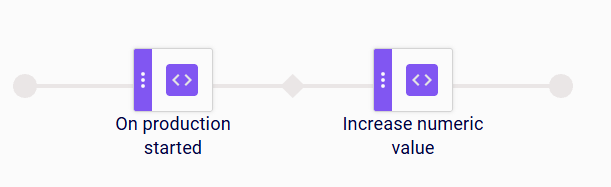
Example 1: Incrementing a Counter when Production Starts
When a production is started on the line, the On production started step triggers the scenario. The Increase numeric value step then increases the configured numeric column on the selected record.
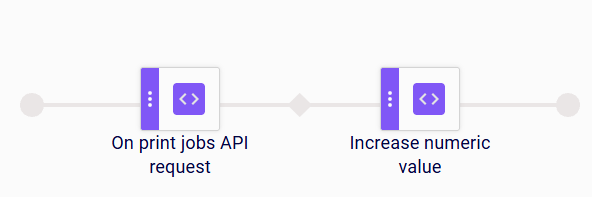
Example 2: Counting Print Jobs Requested via API
When a print job request is received via the API, the On print jobs API request step triggers the scenario. The Increase numeric value step then increases the configured numeric column, by the configured amount for each request.
Limitations
- If the update fails (e.g. the record is not found or the column is not numeric), the step fails and the error is reported in the scenario logs.
Decrease numeric value
This action step decreases a numeric column value on the currently selected record by a configured amount. Use it to reduce stored quantities during scenario execution, for example to decrement a remaining quantity.
| Parameter | Type | Description |
|---|---|---|
| DB table | Mandatory | The database table containing the value to decrease: Product, Production Order, Logistic Unit, etc. |
| DB column | Mandatory | The numeric column of the selected table to decrease. |
| Amount | Mandatory | The amount the value is decreased by. |
Examples
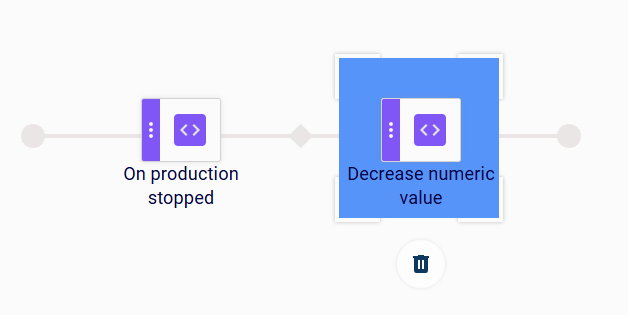
Example 1: Decreasing a Remaining Quantity when Production Stops
When a production is stopped on the line, the On production stopped step triggers the scenario. The Decrease numeric value step then decreases the configured numeric column on the selected record, for example the remaining quantity on the production order.
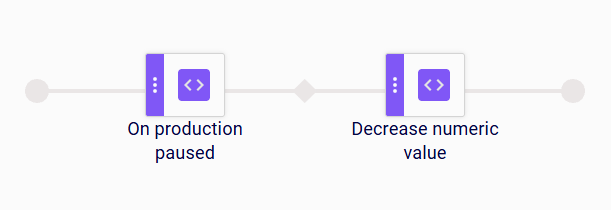
Example 2: Decreasing a Value when Production Is Paused
When a production is paused on the line, the On production paused step triggers the scenario. The Decrease numeric value step then decreases the configured numeric column by the configured amount.
Limitations
- Decreasing a value below 0 is allowed; no lower bound is enforced.
- If the update fails (e.g. the record is not found or the column is not numeric), the step fails and the error is reported in the scenario logs.
Reset numeric value
This action step sets a numeric column value on the currently selected record to a configured reset value. Use it to return counters or quantities to a known starting value during scenario execution.
| Parameter | Type | Description |
|---|---|---|
| DB table | Mandatory | The database table containing the value to reset: Product, Production Order, Logistic Unit, etc. |
| DB column | Mandatory | The numeric column of the selected table to reset. |
| Reset value | Mandatory | The value the column is set to. |
Examples
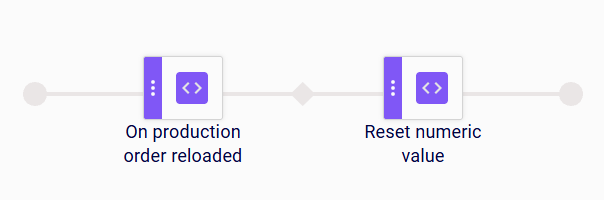
Example 1: Resetting a Counter when a Production Order Is Reloaded
When a production order is reloaded on the line, the On production order reloaded step triggers the scenario. The Reset numeric value step then sets the configured numeric column back to the reset value, for example resetting a produced-units counter on the production order to 0 before the new run starts.
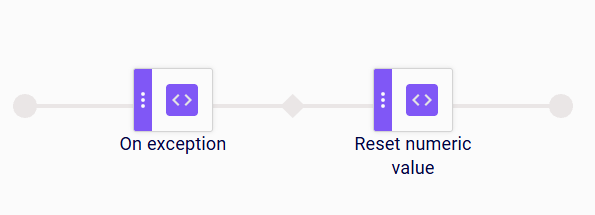
Example 2: Resetting a Value after an Exception
When an exception occurs during scenario execution, the On exception step triggers the scenario. The Reset numeric value step then sets the configured numeric column back to the reset value, so the counter does not keep an inconsistent value after the error.
Increment counter
This action step increases the current value of a counter by the configured increment step. Use it to count recurring events, for example print jobs or production starts. The new value is persisted, so subsequent steps and other scenarios using the counter work with the updated value.
| Parameter | Type | Description |
|---|---|---|
| Counter | Mandatory | The counter to increment. The list shows all counters defined in the counter table. |
| Increment step | Mandatory | The amount the counter’s current value is increased by. |
Examples
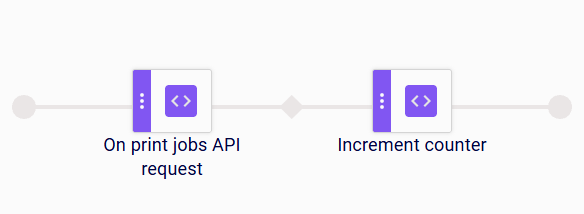
Example 1: Counting Print Jobs Requested via API
When a print job request is received via the API, the On print jobs API request step triggers the scenario. The Increment counter step then increases the selected counter by the configured increment step for each request.
Example 2: Counting Production Starts
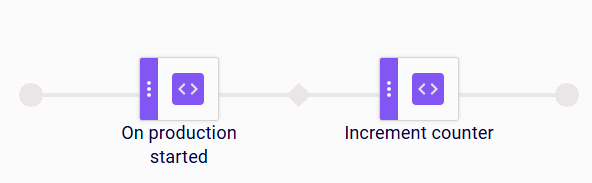
When a production is started on the line, the On production started step triggers the scenario. The Increment counter step then increases the selected counter by the configured increment step.
Decrement counter
This action step decreases the current value of a counter by the configured decrement step. Use it to count down a value, for example a remaining quantity or quota. The new value is persisted, so subsequent steps and other scenarios using the counter work with the updated value.
| Parameter | Type | Description |
|---|---|---|
| Counter | Mandatory | The counter to decrement. The list shows all counters defined in the counter table. |
| Decrement step | Mandatory | The amount the counter’s current value is decreased by. |
Examples
Example 1: Decrementing a Counter when Production Stops
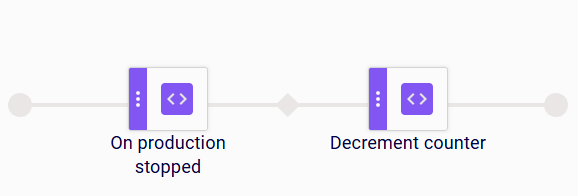
When a production is stopped on the line, the On production stopped step triggers the scenario. The Decrement counter step then decreases the selected counter by the configured decrement step.
Example 2: Decrementing a Counter when Production Is Paused
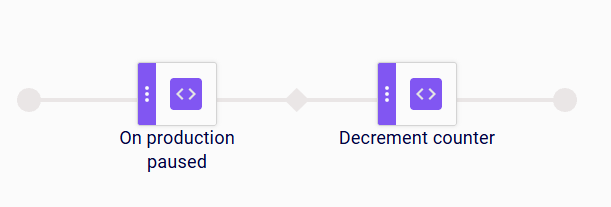
When a production is paused on the line, the On production paused step triggers the scenario. The Decrement counter step then decreases the selected counter by the configured decrement step.
Reset counter
This action step sets the current value of a counter back to the start value defined in the counter table. Use it to return a counter to a known starting point, for example before a new production run. The reset value is persisted.
| Parameter | Type | Description |
|---|---|---|
| Counter | Mandatory | The counter to reset. The list shows all counters defined in the counter table. |
Examples
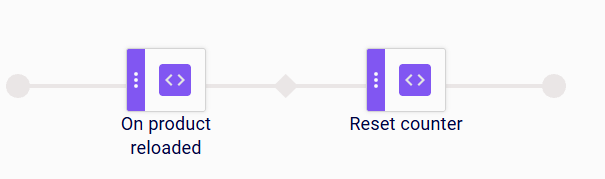
Example 1: Resetting a Counter when a Product Is Reloaded
When the active product on the production line is reloaded, the On product reloaded step triggers the scenario. The Reset counter step then sets the selected counter back to its start value before the new run starts.
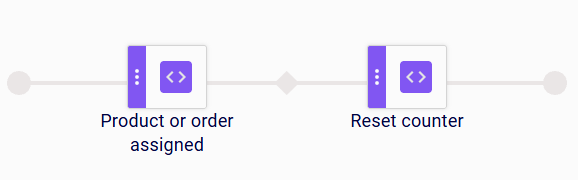
Example 2: Resetting a Counter when a Product or Order Is Assigned
When a product or production order is assigned to the production line, the Product or order assigned step triggers the scenario. The Reset counter step then sets the selected counter back to its start value, so counting starts fresh for the new assignment.
Limitations
- If the counter has no start value defined, the reset clears the counter’s current value.
Evaluate counter
This action step compares the current value of a counter against a configured comparison value. If the condition is true, the scenario continues with the next step. If the condition is false, the scenario stops silently, without reporting an error. Use it to make the following steps conditional on a counter value, for example to enforce a limit.
| Parameter | Type | Description |
|---|---|---|
| Counter | Mandatory | The counter whose current value is evaluated. The list shows all counters defined in the counter table. |
| Condition | Mandatory | The comparison operator: Equals, Not equals, More than, or Less than. |
| Comparison value | Mandatory | The value the counter’s current value is compared against. |
Examples
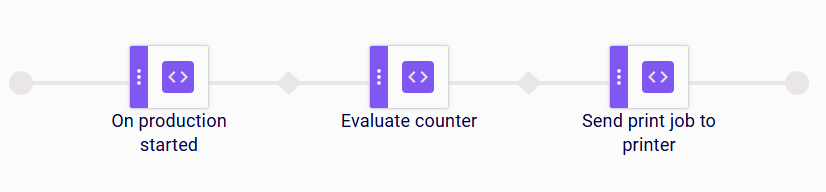
Example 1: Printing Only While a Counter Limit Is Not Reached
When a production is started on the line, the On production started step triggers the scenario. The Evaluate counter step checks the selected counter, for example whether its current value is Less than a configured limit. Only if the condition is true does the Send print job to printer step send the label to the printer; otherwise the scenario stops silently.
Example 2: Resuming Production Based on a Counter Value
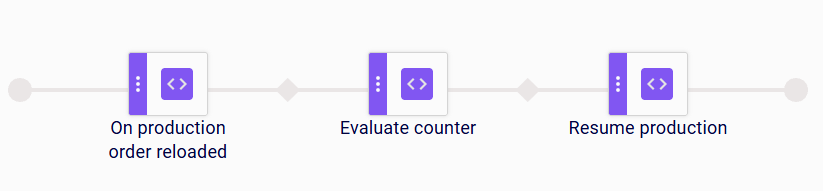
When a production order is reloaded on the line, the On production order reloaded step triggers the scenario. The Evaluate counter step compares the selected counter’s current value against the comparison value. Only if the condition is true does the Resume production step re-send the print job to the printer.