Layout
This tab provides steps that determine which label layout is used for printing and that prepare layout resources.
Identify layout
This action step reads the name of the label layout from a specific column in the master data and assigns it to the print job. The print job is then executed with the layout named in that column, so that each item can be printed with its own layout.
Use this step when the scenario requires a layout that depends on the data being printed, and the single default layout assigned at the printer driver level cannot be used. The step only determines the layout; place it before the step that prints or previews the print data.
| Parameter | Type | Description |
|---|---|---|
| Layout name table | Mandatory | The table in the master data that contains the layout name column. |
| Layout name column | Mandatory | The column that contains the name of the label layout. |
Examples
Example 1: Printing an Assigned Product with the Layout of Its Variant
When a product or production order is assigned to the production line, the Product or order assigned step starts the sequence, and the Start Production step transitions the production line into the running state. The Identify layout step then reads the layout name from the configured column in the master data, for example the layout name stored with the assigned product variant, and assigns that layout to the print job. The Send print job to printer step sends the print job to the printer, which prints the label with the layout of that variant.

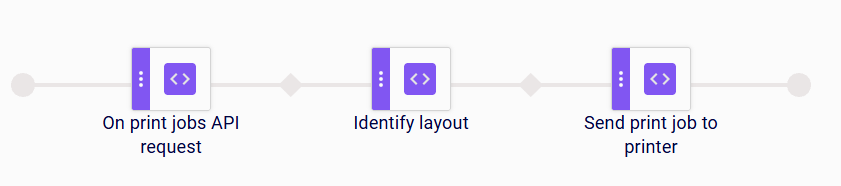
Example 2: Using the Layout Delivered with a Print Job Received via the API
When a print job request is received via the API, the On print jobs API request step triggers the scenario. A print job can also carry the information about the layout it should be printed with, so the Identify layout step reads the layout name from the configured table and column that carry the layout name delivered with the print job, and assigns that layout to it. The Send print job to printer step then sends the print job to the printer, which prints it with the layout delivered in the request.
Limitations
- The step only assigns the layout to the print job; it does not print. To print the label, add a print step such as Send print job to printer or Send print job to all after this step.
- The step must run before the print or preview step that uses the layout.
- The layout name in the configured column must match the name of an existing label layout.
Detect and sync logos
This action step detects which logo files are required for the current print job and synchronizes them to the printer before printing begins.
| Parameter | Type | Description |
|---|---|---|
| Logos directory path | Mandatory | The directory that contains the logo files to synchronize. |