Event
This tab provides trigger steps that react to changes in master data, to production state changes, or to the completion of system tasks.
On product change
This trigger step pauses the scenario until a change in the product master data is detected.
This step has no parameters.
On order change
This trigger step pauses the scenario until a change in the production order master data is detected.
This step has no parameters.
On product or order change
This trigger step pauses the scenario until a change in either the product master data or the production order master data is detected.
This step has no parameters.
On data import
This trigger step pauses the scenario until a specific import task has been executed. Optionally, the trigger can be restricted to successful imports only.
| Parameter | Type | Description |
|---|---|---|
| Import interface | Mandatory | The import task that this step listens to. |
| Start by success | Optional | If enabled, the step only triggers when the import task completed successfully. If disabled, the step triggers regardless of the import result. |
On print jobs import
This trigger step pauses the scenario until a print job import task has been executed. It triggers both when a new print job is imported into the database and when an existing print job’s status is reset to pending.
This step has no parameters.
Examples
Example 1: Printing an Imported Print Job
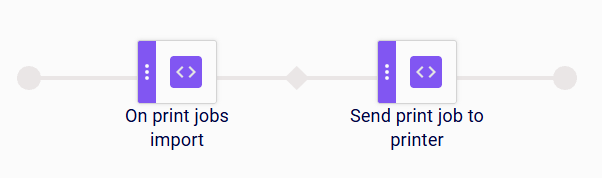
When a print job import task has been executed, the On print jobs import step triggers the scenario. The Send print job to printer step then sends the imported print job to the printer.
Example 2: Printing an Imported Print Job to All Printers
When a print job import task has been executed, the On print jobs import step triggers the scenario. The Identify layout step reads the name of the label layout from the master data, the Generate preview step generates a preview of the print data, and the Send print job to all step then sends the print job to all printers assigned to the line.

On print jobs API request
This trigger step is activated when a print job is received through an external API request. The minimum required information to submit a print job request is the productionLineName field, which identifies the target production line. The printing workflow that follows is configured with coding scenario steps, the same way as a standard print workflow. The API response is returned at the moment the scenario finishes.
This step has no parameters.
Examples
Example 1: Printing All Pending Print Jobs when One Is Requested via API
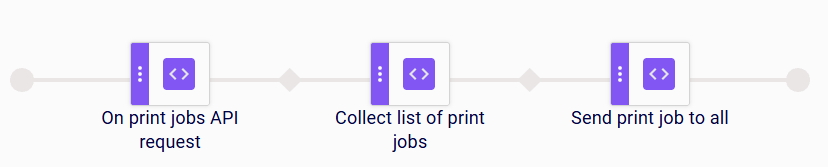
When a print job request is received via the API, the On print jobs API request step triggers the scenario. The Collect list of print jobs step then collects and triggers all pending print jobs, and the Send print job to all step sends them to all printers assigned to the line. The API response still includes only the print job created by the current request.
Example 2: Printing Only the Requested Print Job via API
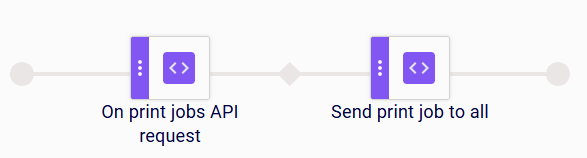
When a print job request is received via the API, the On print jobs API request step triggers the scenario. Without a Collect list of print jobs step in the sequence, the Send print job to all step sends only the print job from the current request, and no other pending print jobs are processed.
Limitations
- If the request is not completed within the configured timeout and a timeout exception is returned, any print jobs and printing results already created up to that point are still persisted in the database; this method is not transactional, so partial results are retained regardless of whether the request completed successfully.
On exception
This trigger step is activated when a preceding step in the coding scenario raises an error. Use it to define the recovery actions that run when a scenario fails, so the error can be handled in a controlled way instead of interrupting production unexpectedly.
| Parameter | Type | Description |
|---|---|---|
| Coding scenarios | Optional | The coding scenarios this exception handler listens to. If left empty, the handler applies to any coding scenario. |
| Silent error handling | Mandatory | If enabled, the error is handled silently: no alarm is raised and the user does not receive a toast notification. If disabled, the error is reported as a toast notification is shown to the user. |
| Exception type | Optional | Restricts the handler to a specific exception type. If left empty, the handler reacts to any exception. |
Examples
Example 1: Stopping production on exception
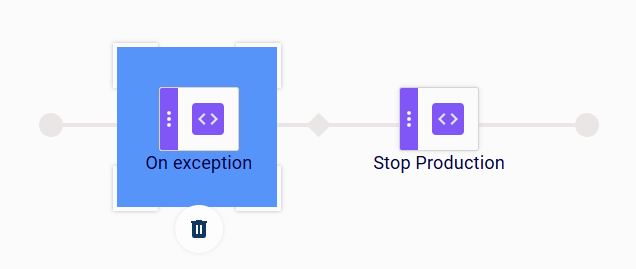
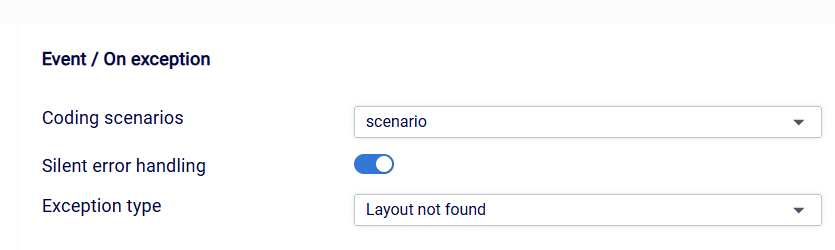
The On exception step is configured to react to the scenario coding scenario, with Silent error handling enabled and the Exception type restricted to Layout not found. When that scenario raises a Layout not found error, the exception is handled silently and the Stop Production step stops the production line.
Example 2: Sending a command on exception
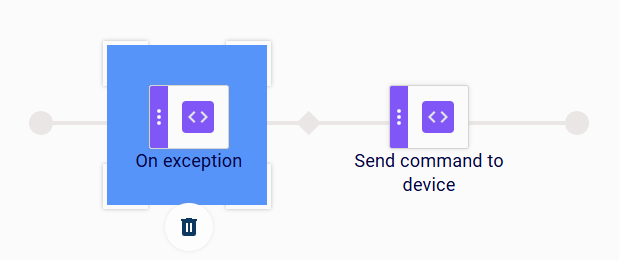
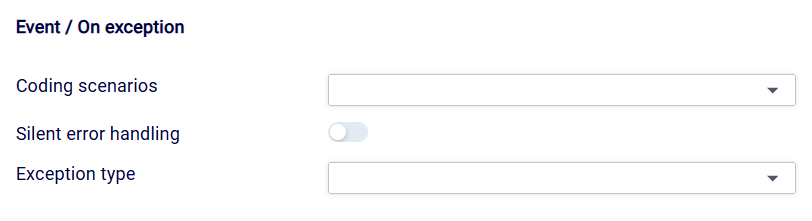
The On exception step is configured with no restrictions: Coding scenarios and Exception type are left empty, and Silent error handling is disabled. As a result, the handler reacts to any exception raised by any coding scenario and reports it as a notification. When an exception occurs, the Send command to device step sends a command to the connected device.
Product or order assigned
This trigger step pauses the scenario until a product or production order is assigned to the production line.
This step has no parameters.
On production started
This trigger step pauses the scenario until the production line transitions to the started state. It also makes all information linked to the production available to subsequent steps in the scenario — the product, the production order, and any other data associated with the production run.
This step has no parameters.
Examples
Example 1: Printing a Label when Production Starts
When a production is started on the line, the On production started step triggers the scenario and makes the production data available. The Identify layout step reads the name of the label layout from the master data, the Generate preview step generates a preview of the print data, and the Send print job to printer step then sends the print job to the printer.

Example 2: Printing Collected Print Jobs when Production Starts
When a production is started on the line, the On production started step triggers the scenario. The Collect list of print jobs step retrieves a filtered list of print jobs from the master data, and the Send print job to printer step then sends them to the printer.

On production stopped
This trigger step reacts to the stop production event: the scenario is triggered when a production is stopped on the production line.
This step has no parameters.
Examples
Example 1: Resetting a Counter when Production Stops
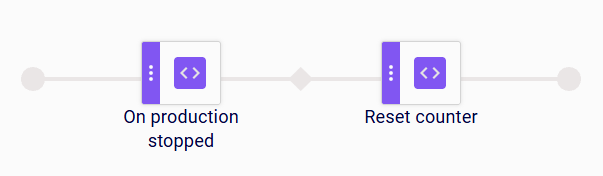
When a production is stopped on the line, the On production stopped step triggers the scenario. The Reset counter step then sets the selected counter back to its start value, so counting starts fresh for the next production run.
Example 2: Clearing the Print Buffer when Production Stops
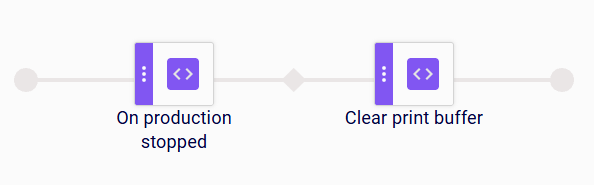
When a production is stopped on the line, the On production stopped step triggers the scenario. The Clear print buffer step then clears the pending print data on the selected printer, so leftover print jobs are not printed when the next production starts.
On production paused
This trigger step reacts to the pause production event: the scenario is triggered when a production is paused on the production line.
This step has no parameters.
Examples
Example 1: Setting a Product Status when Production Is Paused
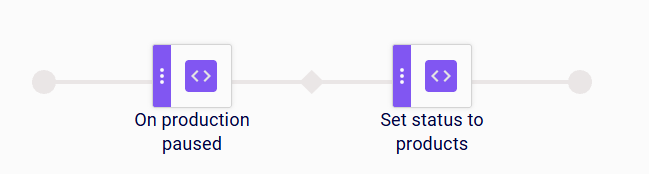
When a production is paused on the line, the On production paused step triggers the scenario. The Set status to products step then sets the configured status on the current products, for example to mark them as on hold while the production is paused.
Example 2: Resetting a Counter when Production Is Paused
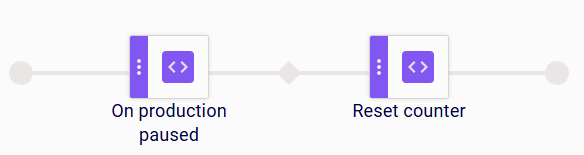
When a production is paused on the line, the On production paused step triggers the scenario. The Reset counter step then sets the selected counter back to its start value.
On product reloaded
This trigger step reacts to the reload event on the production line: the scenario is triggered when the active product is reloaded without a production order. It also makes the reloaded production information available to subsequent steps in the scenario. Use On production order reloaded instead for reloads where a production order is assigned.
This step has no parameters.
Examples
Example 1: Printing a Label when the Product Is Reloaded
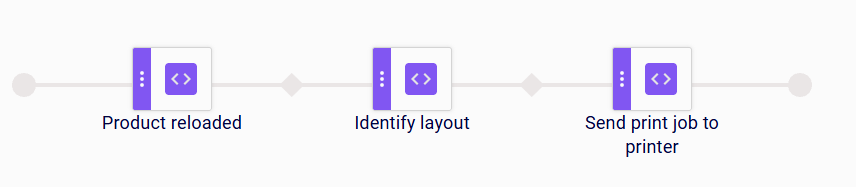
When the active product on the production line is reloaded, the On product reloaded step triggers the scenario and makes the production data available. The Identify layout step reads the name of the label layout from the master data, and the Send print job to printer step then sends the print job to the printer.
Example 2: Clearing the Print Buffer when the Product Is Reloaded
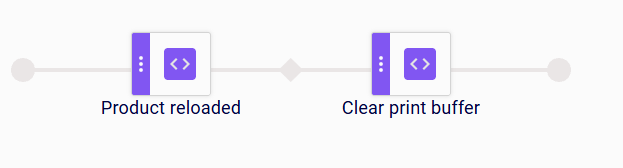
When the active product on the production line is reloaded, the On product reloaded step triggers the scenario. The Clear print buffer step then clears the pending print data on the selected printer, so leftover print jobs are not printed for the reloaded product.
Limitations
- The step only triggers when the reload happens without a production order assigned. If a production order is assigned, use On production order reloaded instead.
On production order reloaded
This trigger step reacts to the reload event on the production line, restricted to reloads where a production order is assigned: the scenario is triggered when the active production order is reloaded. It also makes the reloaded production information available to subsequent steps in the scenario. Use On product reloaded instead for reloads where no production order is assigned.
This step has no parameters.
Examples
Example 1: Printing a Label when the Production Order Is Reloaded
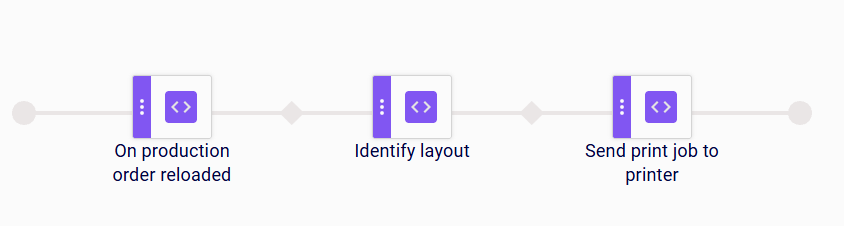
When the active production order on the production line is reloaded, the On production order reloaded step triggers the scenario and makes the production data available. The Identify layout step reads the name of the label layout from the master data, and the Send print job to printer step then sends the print job to the printer.
Example 2: Updating the Status when a Production Order Is Reloaded
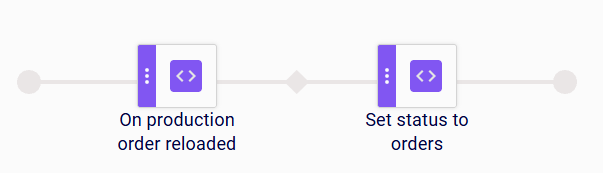
When a production order is reloaded on the line, the On production order reloaded step triggers the scenario. The Set status to orders step then sets the selected status on the current production order.
On printer log
This trigger step reacts to the arrival of a new printer log entry: the scenario is triggered when a new entry is created in the printer log. It also makes the printer log entry from the event available to subsequent steps in the scenario.
This step has no parameters.
Examples
Example 1: Creating a Logistic Unit from a Printer Log Entry
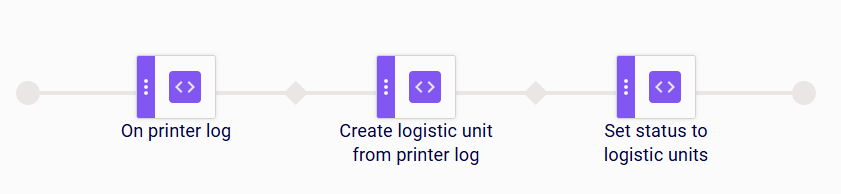
When a new printer log entry arrives, the On printer log step triggers the scenario. The Create logistic unit from printer log step then creates a logistic unit from the entry, and the Set status to logistic units step sets the selected status on the newly created logistic unit.
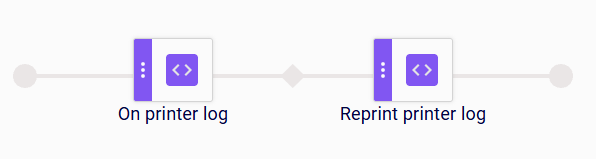
Example 2: Reprinting a Label from the Printer Log in a Global Scenario
In a Global scenario, when a new printer log entry arrives, the On printer log step triggers the scenario. The Reprint printer log step then reprints the label from that printer log entry.
Limitations
On reprint printer log
This trigger step pauses the scenario until a reprint is requested from the printer log.
This step has no parameters.
On resource file import
This trigger step pauses the scenario until a resource file import task has finished.
This step has no parameters.