Barcode Scanner
This tab provides steps that wait for or process input from a barcode scanner.
On scan
This trigger step pauses the scenario until a scan is received from a specific scanner assigned to the production line. The scanned value is passed to subsequent steps.
| Parameter | Type | Description |
|---|---|---|
| Scanner | Mandatory | The scanner that this step listens to. |
| no-read data | Mandatory | The value the scanner reports when it cannot read a barcode (no-read). |
| stop on no-read | Optional | If enabled, the scenario stops when a no-read is received instead of continuing. Enabled by default. |
Examples
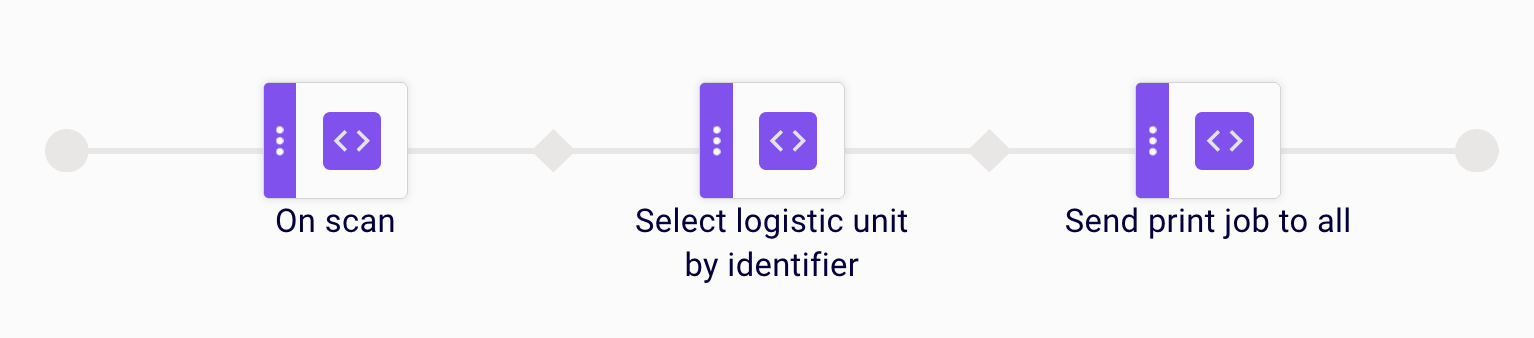
Example 1: Scan a barcode to identify a logistic unit and print a label
A scanner on the production line reads a barcode from an incoming item. The On scan step receives the scanned value and passes it to a Select logistic unit by identifier step, which looks up the matching logistic unit in the master data. Once the logistic unit is identified, a Send print job to all step sends the corresponding label to all printers assigned to the line.
Example 2: placeholder
Placeholder prose for example 2.

Limitations
- Placeholder limitation 1.
- Placeholder limitation 2.
On any scan
This trigger step pauses the scenario until a scan is received from any scanner assigned to the production line. Use this step when the source scanner does not matter.
| Parameter | Type | Description |
|---|---|---|
| no-read data | Mandatory | The value a scanner reports when it cannot read a barcode (no-read). |
| stop on no-read | Mandatory | If enabled, the scenario stops when a no-read is received instead of continuing. |
Examples
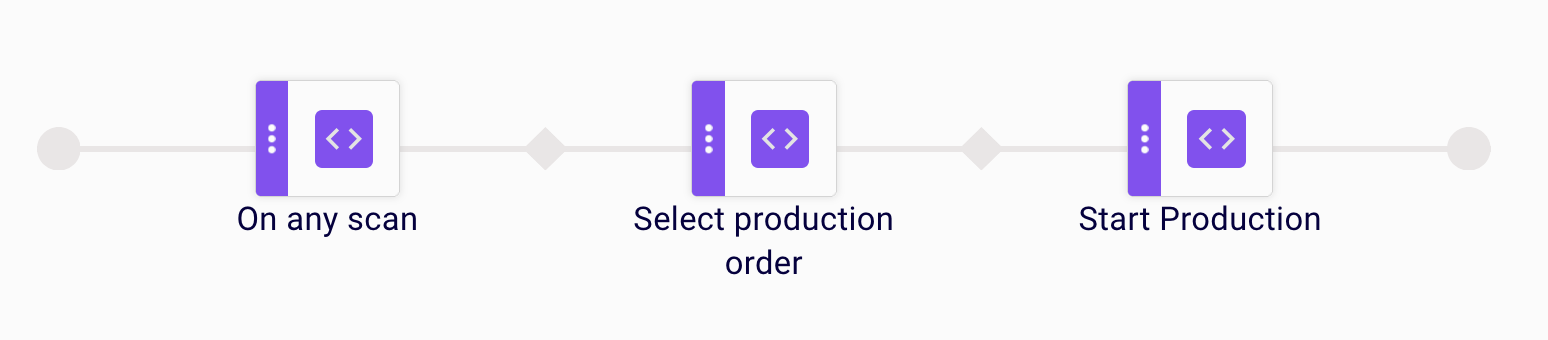
Example 1: Scan from any scanner to identify a production order and start production
Any scanner assigned to the production line can trigger this step — the source does not matter. Once a scan is received, a Select production order step identifies the matching order from the master data. A Start Production step then transitions the production line into the running state.
Example 2: placeholder
Placeholder prose for example 2.

Limitations
- Placeholder limitation 1.
- Placeholder limitation 2.
On socket read
This trigger step pauses the scenario until data is received from a socket reader connection. The step triggers the moment a message is received on the configured socket. The received data (binary) is stored as scenario input without modification, the same way as for the On scan step, so it is available to subsequent steps.
| Parameter | Type | Description |
|---|---|---|
| Socket | Mandatory | The socket reader connection that this step listens to. |
Examples
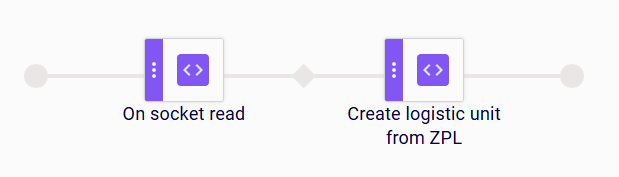
Example 1: Creating a Logistic Unit from Data Received over a Socket
When ZPL data is received over a socket connection, the On socket read step receives the input. The Create logistic unit from ZPL step then applies a configured regular expression to the received data, extracts the unique identifier, and creates a new logistic unit with it.
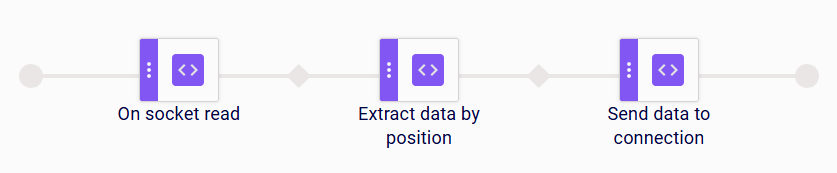
Example 2: Forwarding Data Received over a Socket to a Network Connection
When data is received over a socket connection, the On socket read step receives the input. The Extract data by position step extracts the relevant fragment from the received data, and the Send data to connection step then sends it to the configured network connection.
Check barcode type
This action step checks the most recently scanned barcode against an expected symbology and, optionally, an expected length. Use it to validate that the correct kind of barcode was scanned before continuing.
| Parameter | Type | Description |
|---|---|---|
| Barcode type | Mandatory | The barcode symbology the scanned value is expected to match. |
| Invert logic | Optional | If enabled, the condition is inverted (the check passes when the barcode does not match). |
| Expected length | Optional | The expected number of characters in the scanned value. |
Examples
Example 1: Validating a Scanned Barcode before Sending a Command
A scanner on the production line reads a barcode from an incoming item. The On scan step receives the scanned value. The Check barcode type step then verifies that the scanned value matches the expected barcode type and, if configured, the expected length. Only if the check passes does the Send command to device step send a command to the connected device.

Example 2: Validating Data Received over a Socket before Starting Production
When data is received over a socket connection, the On socket read step receives the input. The Check barcode type step then verifies that the received value matches the expected barcode type and, if configured, the expected length. Only if the check passes does the Start Production step start production on the line.

Limitations
- If Expected length is left empty, only the barcode type is checked; no length validation is performed.
- The length check is only evaluated after the barcode type matches. Invert logic only affects the barcode type comparison; it does not invert the length check.
- If the scanned value’s length does not match Expected length, the scenario stops at this step.
- Expected length must be a positive whole number; invalid values are rejected when configuring the step.
Send data
This action step sends a data payload to a scanner, for example to configure it or trigger an action on the device.
This step is deprecated. Use the more universal Send command to device step instead.
| Parameter | Type | Description |
|---|---|---|
| Scanner | Mandatory | The scanner that the data is sent to. |
| Data template | Mandatory | The template describing the data payload to send. |
| Stop on error | Mandatory | If enabled, the scenario stops when the data cannot be sent. |
Examples
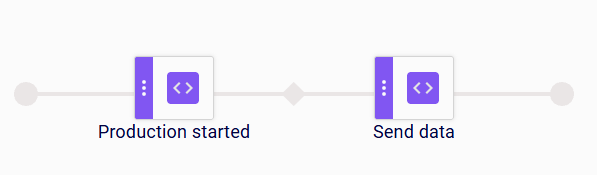
Example 1: Configuring a Scanner when Production Starts
When a production is started on the line, the On production started step triggers the scenario. The Send data step then sends the configured data template to the scanner, for example to apply scanner settings for the new production run.
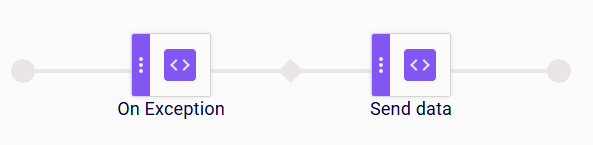
Example 2: Sending Data to a Scanner after an Exception
When an exception occurs during scenario execution, the On exception step triggers the scenario. The Send data step then sends the configured data template to the scanner, for example to reset it after the error.
Limitations
- This step is deprecated; use Send command to device for new scenarios.
- If Stop on error is enabled, the scenario stops when the data cannot be sent to the scanner.
Send data to connection
This action step sends a data payload to a network connection identified by an IP address and port.
If Data source table and Data source column are configured, the value from that column is sent to the connection. Otherwise, the fixed Command is sent.
| Parameter | Type | Description |
|---|---|---|
| Data source table | Optional | The table that provides the payload data. |
| Data source column | Optional | The column that provides the payload data. |
| Destination IP | Mandatory | The IP address of the target connection. |
| Destination port | Mandatory | The port of the target connection. |
| Command | Optional | A fixed command to send instead of the data source value. |
Examples
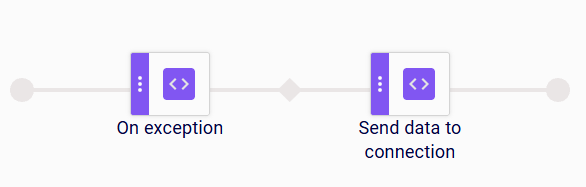
Example 1: Notifying an External System after an Exception
When an exception occurs during scenario execution, the On exception step triggers the scenario. The Send data to connection step then sends the configured data to the target IP address and port, for example to notify an external system about the error.
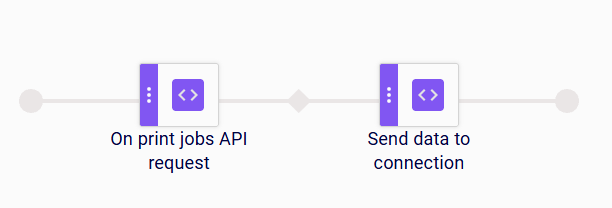
Example 2: Forwarding Data when a Print Job Is Requested via API
When a print job request is received via the API, the On print jobs API request step triggers the scenario. The Send data to connection step then sends the configured data to the target IP address and port, for example to forward information about the print job to an external system.
Limitations
- Only one payload is sent per execution: the data source value if a data source is configured, otherwise the command.