Data Types
Reference for each master data type — what it represents, how to import it, and how to export it.
manage.ID’s master data consists of five types:
- Product — identified by product code and variant; the base identity a coding scenario matches against.
- Production Order — a specific production run of one product, carrying batch, date, and quantity information.
- Various Data — extra reference attributes linked to a product or order, beyond their own fixed fields.
- Logistic Unit — a physical packaging unit such as a pallet or case, tracked by a unique identifier. The only master data type that can also be exported.
- Print Job — the unit of work sent to a printer.
Each has its own page with details on its structure, matching behavior, and limitations. For how to set up the import or export task itself, see Data Integration > Importing Data and Exporting Data.
1 - Product
What a product is in manage.ID, its fields, and where it’s used.
What is this data
A product is identified by the combination of its product code and product variant.
Where it is used
During production, the Select product coding-scenario step matches a scanned or imported input value against this master data to identify the correct product and load its data — including any linked Various Data — into the scenario, so it can be used to fill in the label. See Production Data for the related coding scenario steps, and Preparing Production on a Production Line for how a product is assigned to a line.
Fields
| Field | Label | Mandatory | Notes |
|---|
productCode | Product code | Yes | Max 100 characters. Part of the match key. |
productVariant | Variant | No | Max 10 characters. Blank/empty is valid and is the default if omitted. Part of the match key. |
companyPrefix | Company prefix | No | Max 10 characters. |
description | Description | No | Max 255 characters. |
If the Statuses feature is enabled, a Status field is also available, along with two read-only fields (Status changed at, Status change type) that are set automatically.
Matching & updates
A product is matched by the combination of product code and product variant (this pair must be unique — it’s enforced by the database). If a match is found, the product is updated: only the columns actually present in the incoming row are overwritten, all other fields keep their current value. If no match is found, a new product is created.
Auto-created related records
None — a Product import never creates other records. Products themselves are frequently auto-created as a side effect of importing a Production Order, Logistic Unit, or Print Job that references a product code that doesn’t exist yet (see those pages).
Custom / additional columns
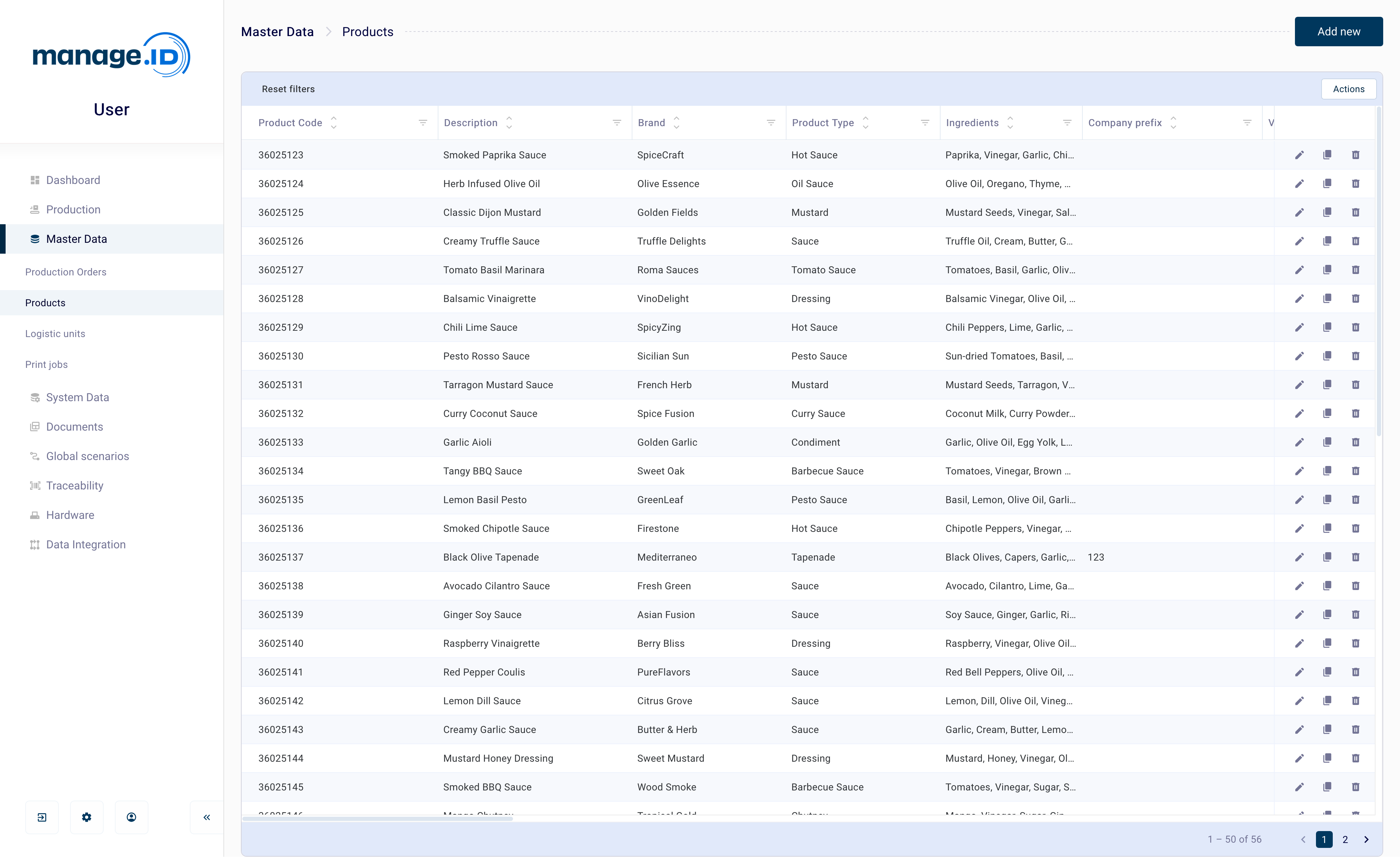
Beyond the fixed fields above, a product can carry custom columns to describe whatever else your company needs to track about it — for example a brand, category, or ingredient list. Up to 150 custom columns are supported per table, each storing up to 3200 characters. If the Various Data feature is enabled, columns in the Products list are tagged with a badge showing which table they actually come from — Product or Various — since the grid can combine a product’s own columns with linked Various Data columns. See Various Data for details on that feature:
2 - Production Order
What a production order is in manage.ID, its fields, and where it’s used.
What is this data
A production order represents a specific production run or batch of one product — it carries run-specific attributes such as batch number, quantity, and production/expiry dates, in addition to a link to the product being produced.
Where it is used
The Select production order coding-scenario step identifies the order matching the current input and loads it, its linked product, and any linked Various Data into the scenario. See Production Data for the related coding scenario steps, and Preparing Production on a Production Line for how an order is assigned to a line.
Fields
| Field | Label | Mandatory | Notes |
|---|
prodOrder | Production order | Yes | Max 100 characters. The match key. |
productCode | Product code | Yes | Used together with productVariant to resolve (or auto-create) the linked product. |
productVariant | Product variant | No | Blank/empty is treated as no variant. |
batchNumber | Batch number | No | Max 255 characters. |
companyPrefix | Company prefix | No | Max 10 characters. |
expiry | Expiry | No | Free-text field — not validated as a date. |
bestBefore | Best before date | No | Free-text field — not validated as a date. |
quantity | Quantity | No | Free-text field — not validated as a number. |
prodDate | Production date | No | Free-text field — not validated as a date. |
prodStart | Production start | No | Free-text field — not validated as a date/time. |
prodStop | Production stop | No | Free-text field — not validated as a date/time. |
If the Statuses feature is enabled, a Status field is also available, along with two read-only fields (Status changed at, Status change type).
Matching & updates
A production order is matched to an existing one by production order number (prodOrder) alone. If a match is found, only the columns present in the incoming row are overwritten; other fields keep their current value. If no match is found, a new order is created. The order’s linked product is always re-resolved from productCode/productVariant, so updating an order’s product reference this way is possible, and supplying a stale product code onto an existing order can re-point it.
Auto-created related records
If the referenced product (productCode + productVariant) doesn’t exist yet, it is created automatically.
Custom / additional columns
Beyond the fixed fields above, a production order can carry custom columns to describe whatever else your company needs to track about it. Up to 150 custom columns are supported, each storing up to 3200 characters.
Unlike Product, a production order has no direct link of its own to Various Data — Various Data is only ever matched against a product. When a production order’s Various Data is loaded into a coding scenario (see above), it’s resolved via the order’s linked product, not the order itself. See Various Data for details.
3 - Various Data
What various data is in manage.ID, its fields, and where it’s used.
What is this data
Various Data is a generic key/value lookup table used to attach extra attributes to a product beyond its own fixed fields — for example translations, certificates, or additional reference data pulled from an external system. It has no relation of its own to Production Order, Logistic Unit, or any other table — only Product links to it.
Where it is used
A link configured between a product column and Various Data means that whenever the Select product coding-scenario step resolves a product, the matching Various Data row is automatically pulled in alongside it and made available for use on the label. A Select production order step gets there too, but only transitively — via the order’s linked product, not a link of the order’s own (see Production Order). See Production Data for the related coding scenario steps.
Setting up the link
The link is configured once, globally, from the Products grid — there’s only ever one link configuration at a time, and it exists only for Product; no other master data grid exposes this action.
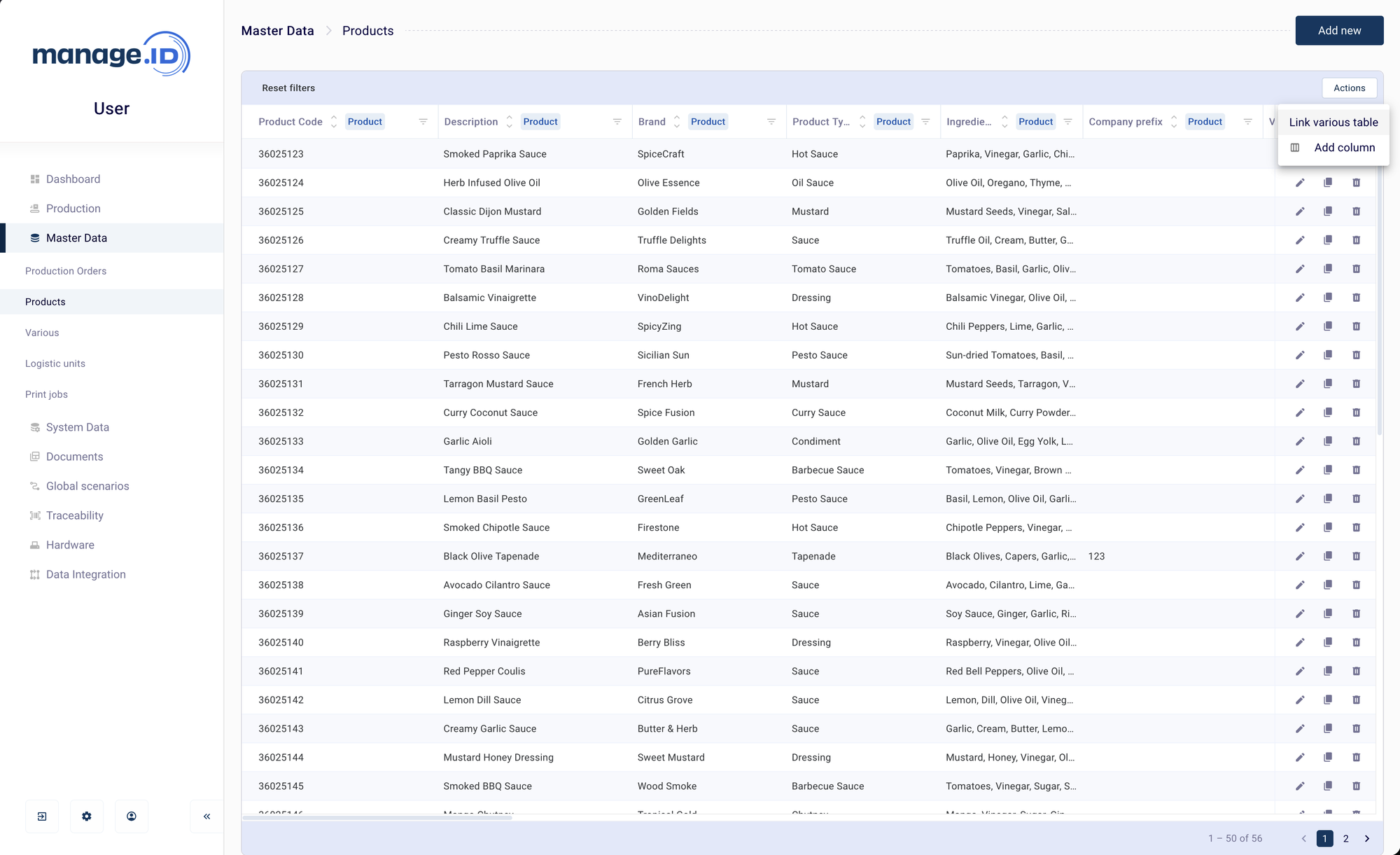
In Master Data > Products, open the Actions menu and select Link various table.
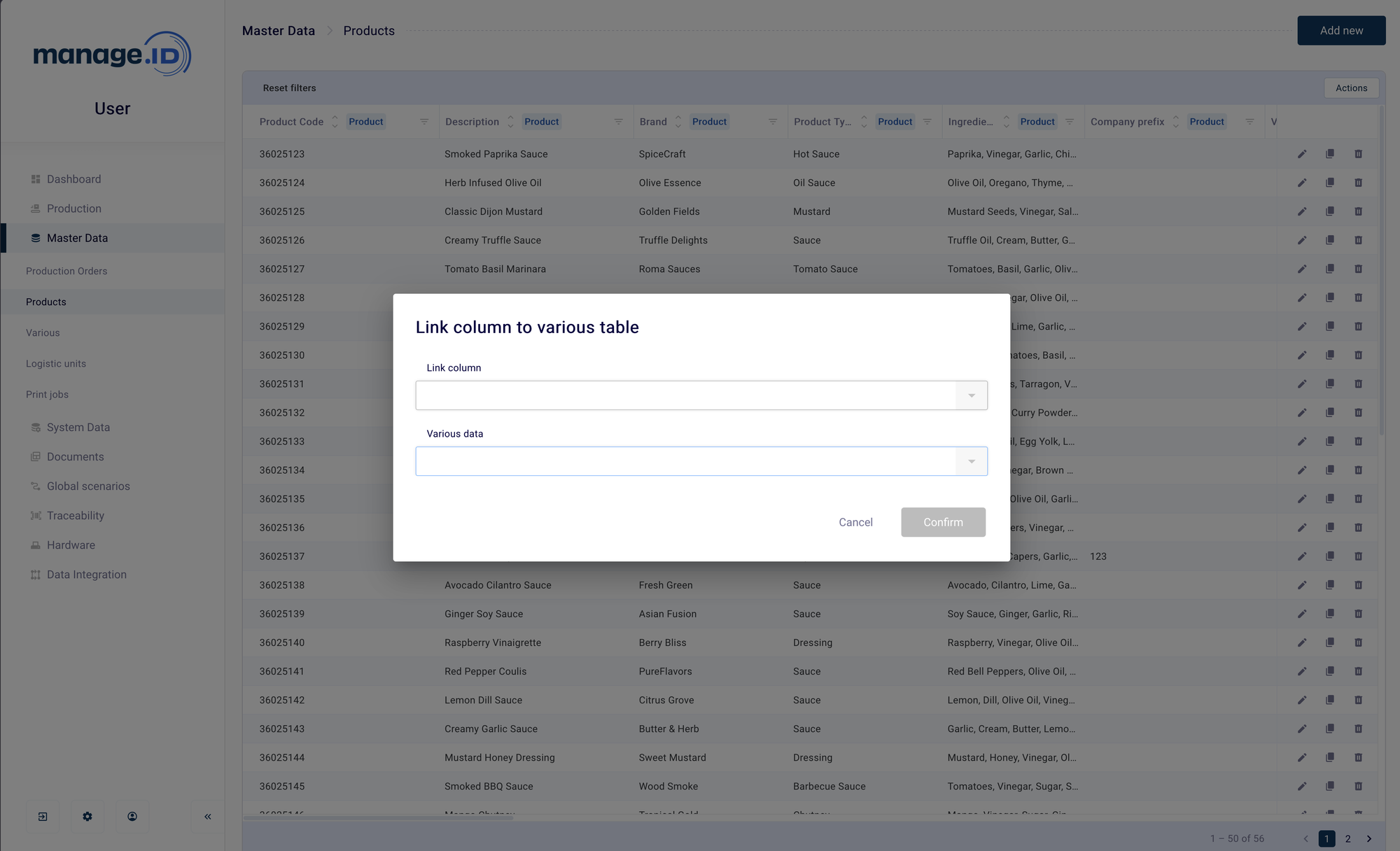
In the Link column to various table dialog, choose:
- Link column — the Product column (a fixed field or a custom column) whose value is used as the foreign key. This value is matched against each Various Data entry’s
key. - Various data — the Various Data columns to pull onto the Products grid once a match is found.
Confirm. Reconfiguring the link (choosing a different link column or column selection) replaces the previous configuration — it isn’t additive.
With the link in place, resolving a product (manually, via import, or through the Select product coding-scenario step) looks up the value in the linked column against every Various Data entry’s key and attaches the match.
Fields
| Field | Label | Mandatory | Notes |
|---|
key | Key | Yes | The only fixed field. The match key. |
Every other column is a custom column you define yourself when configuring the table (see Custom / additional columns below) — Various Data has no other predefined fields.
Matching & updates
An entry is matched by its key. If a match is found, only the columns present in the incoming row are overwritten; other columns keep their current value. If no match is found, a new entry is created.
Auto-created related records
None. Various Data has no relation to Product, Production Order, or any other table.
Custom / additional columns
Beyond key, Various Data is almost entirely custom columns — each one describing whatever extra attribute your company needs to track, such as a translation, certificate, or reference value. Because Various Data is almost entirely custom columns, this limit matters more here than on other tables: only 50 custom columns are physically available for Various Data (up to 3200 characters each) — unlike the 150 available on most other tables. The column-assignment mechanism does not stop you from allocating more than 50; a 51st custom column will appear to save as configuration but fail when data is actually imported into it. Keep the total number of custom columns you define for Various Data to 50 or fewer.
4 - Logistic Unit
What a logistic unit is in manage.ID, its fields, where it’s used, and how to export it.
Available only when the Logistic Units feature is enabled.
What is this data
A logistic unit represents a physical packaging unit — a pallet, carton, or case — tracked by a unique identifier. It can be linked to a product and/or production order, and carries a lifecycle status (for example packed, shipped, or blocked). The default pattern used when creating a logistic unit from scanned or printed ZPL data ((?<=\(00\))\d{18}) extracts a GS1 SSCC — an 18-digit Serial Shipping Container Code following the GS1 application identifier (00) — confirming that a logistic unit is the serialized, trackable packaging level in the labeling process.
Where it is used
See Production Data for the coding scenario steps that create, select, and update logistic units.
Fields
| Field | Label | Marked mandatory in UI | Actually enforced on import | Notes |
|---|
uniqueId | Unique ID | No | No | Max 255 characters, unique when present. The match key, if supplied (see below). |
noRead | No Read | No | No | |
zplCode | Zebra | No | No | Stored as raw ZPL/label data. |
productionOrder | Production order | No | No | Used to resolve or create the linked production order. |
productCode | Product code | No | No | Used with productVariant to resolve or create the linked product. |
productVariant | Product variant | No | Conditional | Rejected if supplied without productCode. |
createdOnLine | Created on line | No | No | Not editable after creation. |
createdOnLineAt | Created on line at | No | No | Not editable after creation. |
modified | Changed at | No | No | Set automatically. |
If the Statuses feature is enabled, a Status field is also available.
Unlike Product, Production Order, and Print Job, nothing on this table is marked mandatory — a logistic unit can be created from very little data. The only rule actually enforced is that productVariant cannot be supplied without productCode.
Matching & updates
If the row supplies a Unique ID, it is used to look up an existing logistic unit; if a match is found, only the columns present in the row are overwritten, other fields keep their current value. If the row has no Unique ID, a new logistic unit is always inserted — no matching is attempted, so it’s possible to accumulate many logistic units with no Unique ID set.
Auto-created related records
If the referenced product or production order doesn’t exist yet, both can be created automatically — this is the deepest cascade of any table: a single Logistic Unit row can silently create a new Product and a new Production Order.
Custom / additional columns
Beyond the fixed fields above, a logistic unit can carry custom columns to describe whatever else your company needs to track about it. Up to 150 custom columns are supported, but note the per-value size is smaller here than on most other tables: up to 255 characters each (versus 3200 on Product, Production Order, and Print Job). Logistic Unit has no relation of its own to Various Data — only Product does (see Various Data).
Exporting this data
Logistic Units are one of only two data types that can be exported. Export uses the same generic mechanism as any database-sourced export: up to 1000 records per export run, with each record exported at most once by a given task. Filtering uses the generic field-filter rules for this table — the “from date” incremental filter and printer filter available for Printer Logs don’t apply here. See Exporting Data for how to set up the export task itself.
5 - Print Job
What a print job is in manage.ID, its fields, and where it’s used.
What is this data
A print job is the unit of work sent to a printer.
Where it is used
A print job is normally created by a coding scenario’s Send print job to printer/Send print job to all step, but an external system (an ERP or WMS, for example) can also create one directly by importing print job data or calling the print-job API. Both paths fire an event that a coding scenario can react to — the On print jobs import and On print jobs API request trigger steps let a scenario automatically start printing as soon as a print job arrives, with no operator scan required. See Send Print Job(s) and Event for the related coding scenario steps.
Because importing a print job can immediately trigger printing, treat a Print Job import task as an operational trigger, not just a data update.
Fields
| Field | Label | Marked mandatory in UI | Actually enforced on import | Notes |
|---|
quantity | Quantity | Yes | Yes | Must parse as an integer, or the row is rejected. |
productionLine | Production line | Yes | Yes | Must match the title of an existing production line — production lines are never auto-created. |
productVariant | Product variant | No | Conditional | Checked only when productCode is also supplied; must be 10 characters or fewer. |
productCode | Product code | No | No | Used with productVariant to resolve or create the linked product. |
productionOrder | Production order | No | No | Used, together with the resolved product, to resolve or create the linked production order. |
status | Print Job Status | Yes | — | Always force-set to Pending on import; any value supplied in the row is ignored. |
dateTimeImport | Import date and time | Yes | — | Always force-set to the current server time on import; any value supplied is ignored. |
filenameImport | Import filename | Yes | — | Always force-set to the source file’s name on import; any value supplied is ignored. |
Matching & updates
There is no match key for this table. Every imported row that supplies at least one print-job field always inserts a brand-new print job — Print Job import is append-only; there is no update path, so importing the same source data twice creates duplicate print jobs rather than updating one.
Auto-created related records
If the referenced product doesn’t exist yet, it’s created automatically; if a production order is also supplied and doesn’t exist yet, it’s created too. The production line, however, is never auto-created — an import row referencing an unknown production line fails.
Custom / additional columns
Beyond the fields above, a print job can carry custom columns to describe whatever else your company needs to track about it. Up to 100 custom columns are supported, each storing up to 3200 characters. Print Job has no relation of its own to Various Data — only Product does (see Various Data).
6 - Custom Columns
How to add a custom column to a master data table.
Before you begin
- You are assigned to a user group that has the Manage data columns permission — this is required both to add a new column and to rename one.
What this is
Beyond the fixed fields documented on each data type’s page, every master data table — Product, Production Order, Various Data, Logistic Unit, and Print Job — can be extended with custom columns to track whatever else your company needs. Each table has its own fixed capacity and per-value character limit; see that data type’s Custom / additional columns section for the specifics.
Adding a column
In Master Data, open the table you want to extend (Products, Production Orders, Various, Logistic units, or Print jobs), open the Actions menu, and select Add column.
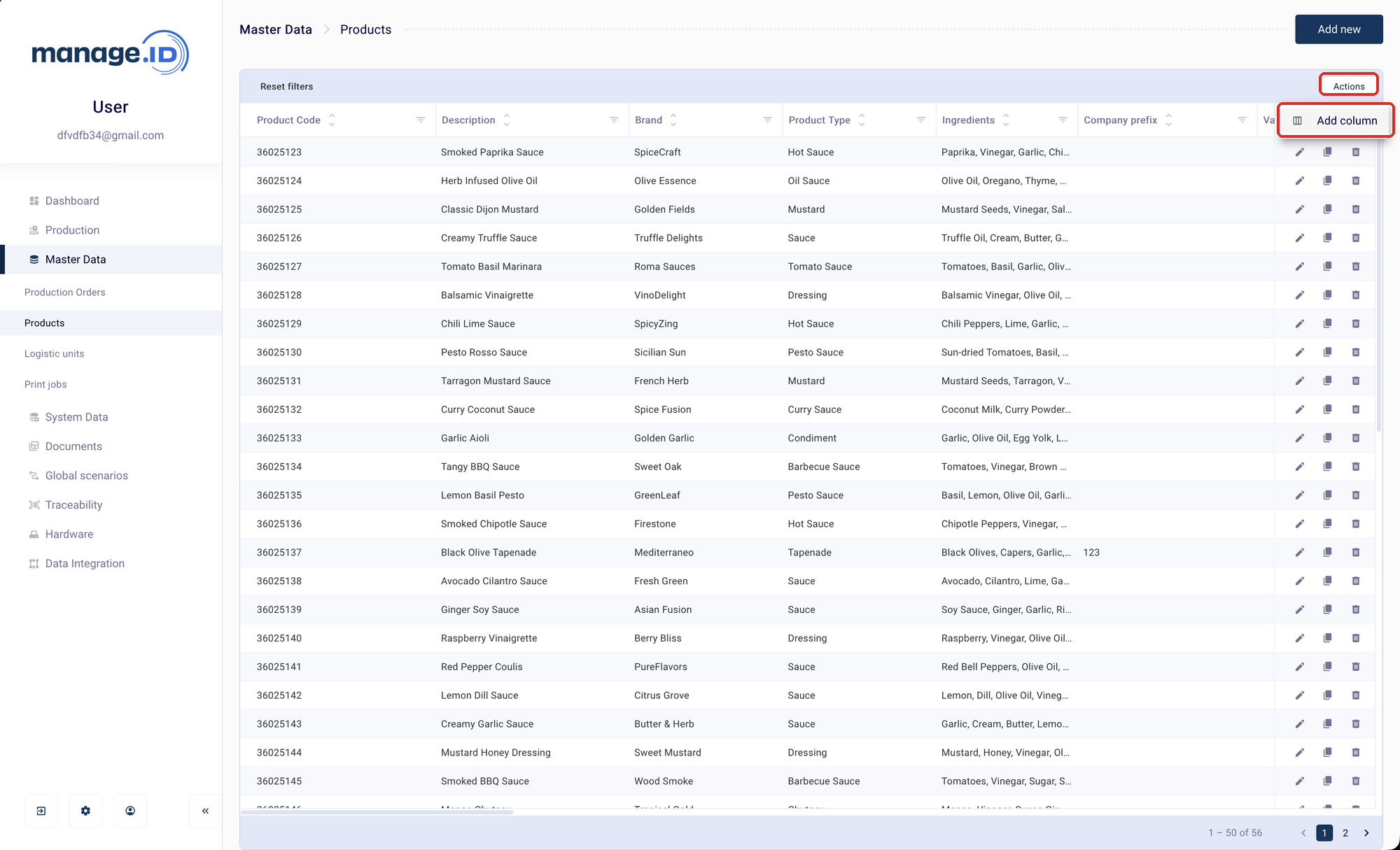
In the Create a new column dialog, enter a Column name — the only field. If the Audit Trail feature is enabled, you’ll also need to supply a Reason. There’s no option here to set a data type, a character limit, or which table it belongs to — those are fixed by the table you opened the dialog from.
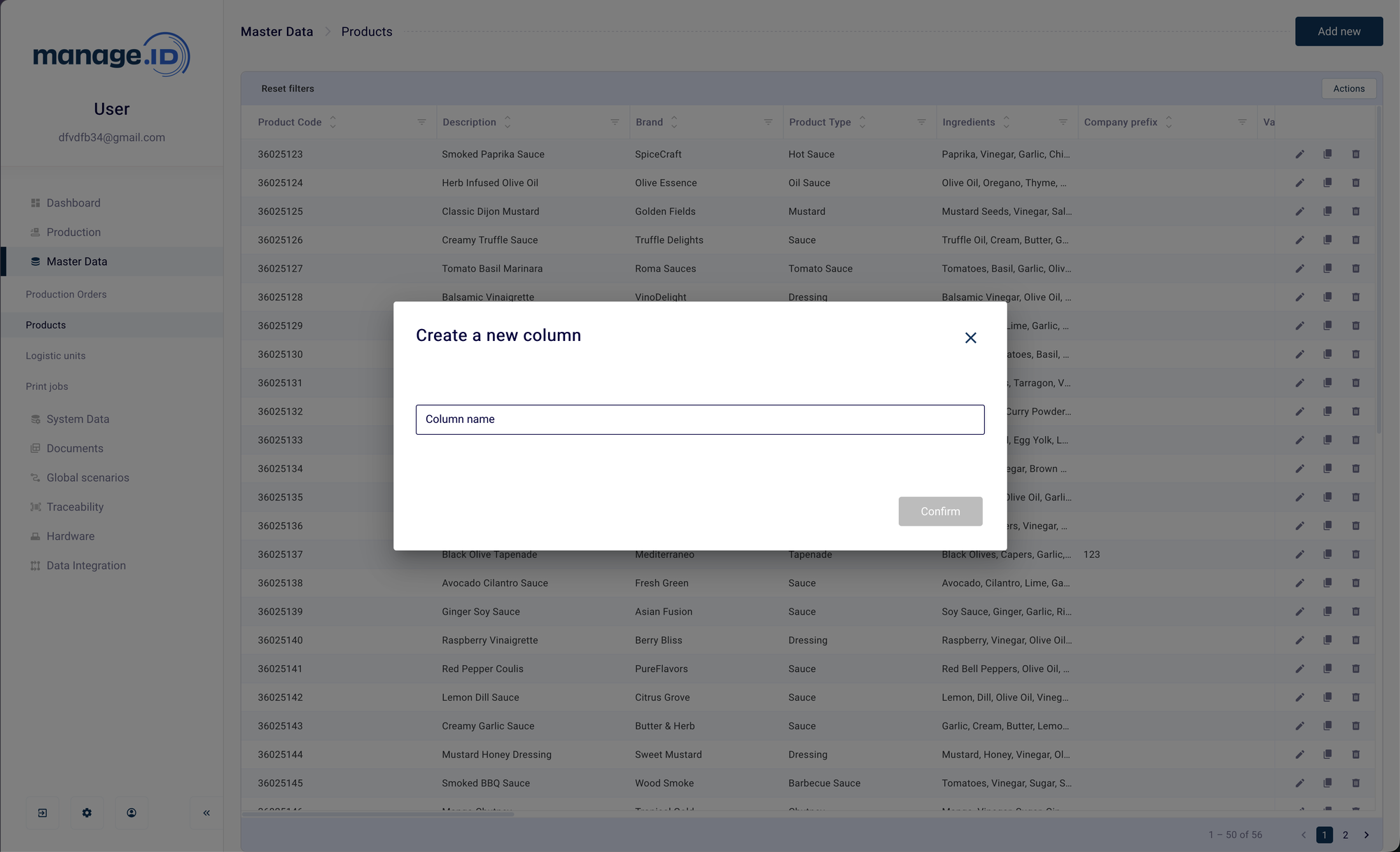
Confirm. The column is created immediately as a visible, editable, optional field — this dialog has no way to make a new column mandatory or a “main” field.
A name already in use on that table (matched by its label) is rejected with a “Column already exists” error.
How it relates to importing
Adding a column here and letting an import task map an unmapped source column to a new custom field use the same underlying mechanism — both claim the next free slot out of that table’s fixed capacity. A column added one way is immediately available to the other: add it here and it shows up as a mapping target during import setup, or map a new custom column during import and it shows up here, in the table, afterwards.